

One-click payments with Klarna Web SDK (Partner orchestrated)
Charge a returning customer's saved Klarna option in a one-click, customer-initiated transaction using the Klarna Web SDK, where you orchestrate the charge. Create the Klarna payment request with the Klarna Customer Token, then finalize through Solidgate with the klarna_network_session_token.
9 min read
This guide explains how to charge a returning customer's saved Klarna option in a one-click, customer-initiated transaction using the Klarna Web SDK, where you orchestrate the charge. The customer is at checkout and has a stored Klarna Customer Token, so Klarna can be pre-selected as a one-click "Saved" option.
You restore the saved option from the Klarna Customer Token, then create Klarna's payment request yourself with the Klarna Customer Token and the selected
payment_. Klarna returns a klarna_ via the completion webhook, which you forward to Solidgate to finalize the charge.Integration requirement
Charge credential: Klarna Customer Token only. Because you initiate the charge, this flow is authorized on the Klarna Customer Token only. The Solidgate token applies only when Solidgate initiates the charge — see One-click payments with Klarna Web SDK (Solidgate orchestrated).
Full Web SDK setup reference
For the full Web SDK setup (loading the SDK, rendering the payment selector, button styling, payment-request lifecycle), follow Build checkout form with Klarna Web SDK. This page covers only the saved-option specifics. To compare all tokenized flows, see the Tokenized payments overview.
Prerequisites
Before you integrate, check that you meet the following prerequisites:
- 1.Ensure that you have Klarna enabled with Solidgate.
- 2.A stored Klarna Customer Token for the customer, issued with the
payment:customer_scope (see Create a Klarna Customer Token).present - 3.Confirm you have access to the Klarna Partner Portal with a client identifier (domain allowlisted) and an API key able to call the Klarna Payment Request API and generate a Klarna Network Session Token.
- 4.Confirm that you have registered webhooks for
payment.events following the Webhooks guidelines.request. state-change. completed - 5.Add Terms and Conditions covering saved payment methods.
Integration overview
- 1.Generate a Klarna Network Session Token from the stored Klarna Customer Token and initialize the Web SDK with it.
- 2.The payment presentation returns the customer's saved option and its
payment_for the one-click experience.option_ id - 3.Render Saved (pre-selected) and Pick plan in your payment selector.
- 4.The customer selects the saved option; you call Klarna's Create Payment Request with the Klarna Customer Token, the
payment_, and aoption_ id customer_.interaction_ config - 5.If Klarna requires a step-up (based on risk), the Klarna Web SDK launches the Klarna Purchase Journey and the customer completes it. Otherwise the request completes immediately.
- 6.Klarna fires the
payment.webhook with a (new) Klarna Network Session Token.request. state-change. completed - 7.You forward the (new) Klarna Network Session Token to Solidgate to finalize the charge.
- 8.Solidgate approves the order; you redirect the customer to your confirmation page.
sequenceDiagram
autonumber
participant C as Customer
participant P as Partner
participant K as Klarna
participant AP as Solidgate
C->>P: Visits checkout page
P->>K: Generate Klarna Network Session Token<br/>POST network/session/tokens
Note over P,K: Header: Klarna-Customer-Token
K-->>P: Return klarna_network_session_token
P->>K: Initialize Klarna Web SDK
Note over P,K: klarnaNetworkSessionToken
K-->>P: Return payment methods and instruction
P->>P: Display Klarna payment methods
C->>P: Click Klarna payment button
K->>P: Trigger initiate callback
Note over K,P: (new) klarna_network_session_token<br/>paymentOptionId
P->>K: Create payment request<br/>POST /v2/payment/requests
Note over P,K: Header: Klarna-Customer-Token<br/>Header: (new) Klarna-Network-Session-Token<br/>payment_option_id
alt STEP_UP_REQUIRED
K-->>P: Return payment_request_url
P->>K: Forward payment_request_url to Klarna Web SDK
K->>C: Launch Klarna purchase journey
C->>K: Complete Klarna purchase journey
end
K-->>P: Payment request completed event (webhook)
Note over K,P: (new) klarna_network_session_token
P->>AP: Confirm payment
Note over P,AP: (new) klarna_network_session_token
AP-->>P: Order completed notification
P-->>C: Display confirmation message
Integration details
- 1.Generate a Klarna Network Session Token from the Klarna Customer Token. Before initializing the Web SDK, call the Generate Klarna Network Session Token endpoint server-side (
POST /) with the stored Klarna Customer Token in thev2/ network/ session/ tokens Klarna-Customer-Tokenheader. The returned Klarna Network Session Token carries the customer's saved Klarna context and is directly Web SDK-compatible. - 2.Initialize the Web SDK with the Klarna Network Session Token so the payment presentation returns the saved option, including its
payment_for the one-click experience.option_ id - 3.Render the saved option. With a Klarna Customer Token context present, the presentation returns a
savedPaymentOption(in addition to the defaultpaymentOption) with thePRESELECT_instruction. Render the Saved option before the default option and pre-select it; the default option becomes the Pick plan entry.KLARNA
Customer token required for saved option
The Klarna Customer Token is required to present the saved option. Use it to generate a Klarna Network Session Token via
generateKlarnaNetworkSessionToken (the legacy Generate SDK Token / sdk_ exchange is deprecated). The Klarna Customer Token is a durable credential — generating a session token does not consume it, so you can reuse it to generate more.Chain a session token from Boost features
If you already hold a Klarna Network Session Token obtained when the customer interacted with a Boost feature (for example On-site messaging or Sign in with Klarna) earlier in the checkout, chain it: call
generateKlarnaNetworkSessionToken with both that session token in the Klarna-Network-Session-Token header and the Klarna Customer Token in the Klarna-Customer-Token header. The returned session token is what you use to initialize the SDK, preserving session continuity across the checkout.The recommended presentation when a Klarna Customer Token is available:
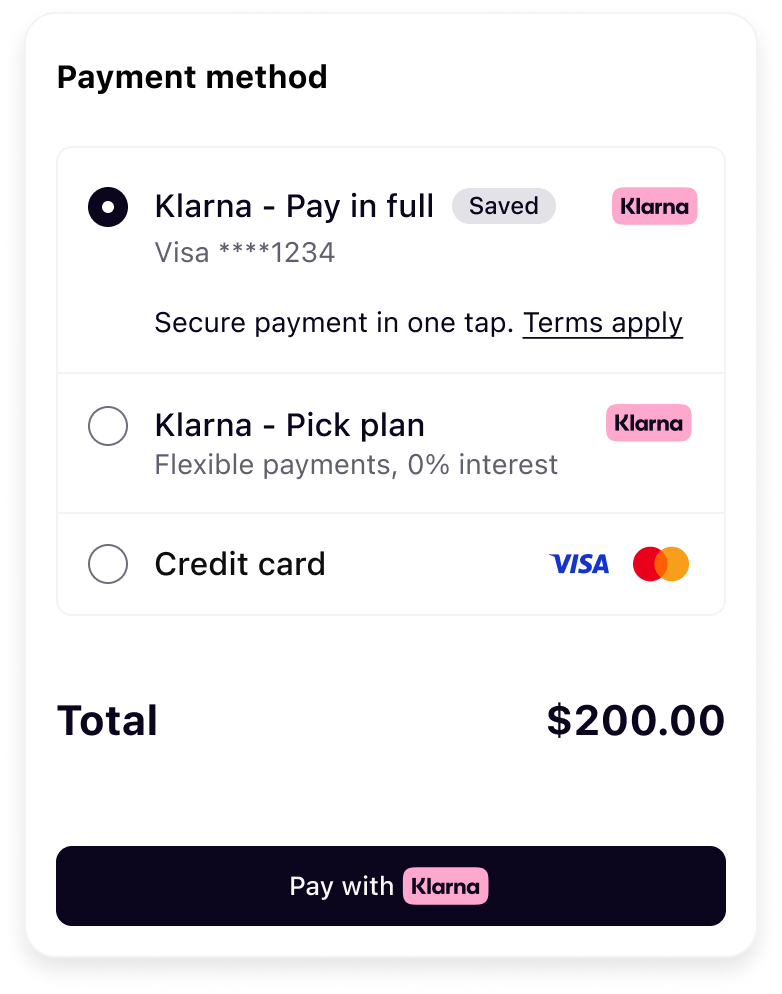 | 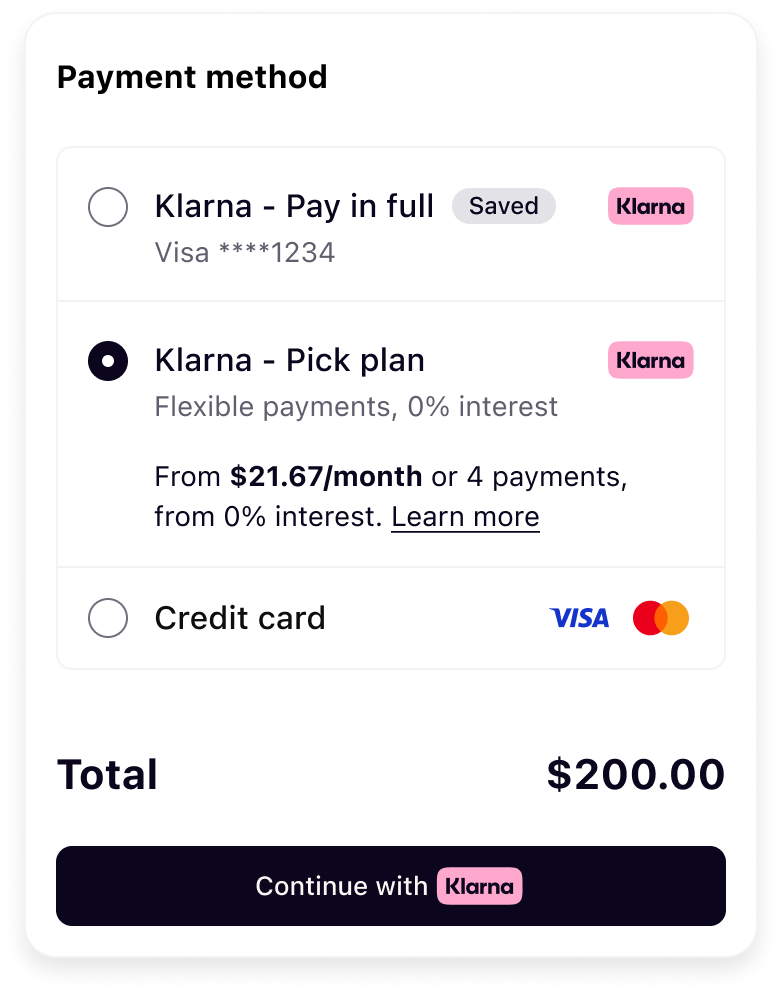 |
| Saved Klarna option (pre-selected) | Pick Plan selected |
Prioritize the
savedPaymentOption by placing it before the default paymentOption. Pre-select it on PRESELECT_, and show it as the only option on SHOW_.JAVASCRIPT
1
2
3
4
5
6
7
8
9
10
function renderKlarna(paymentPresentation) {
const { paymentOption, savedPaymentOption, instruction } = paymentPresentation;
// Render the saved option first (Saved), then the default option (Pick plan)
if (savedPaymentOption) renderKlarnaOption("klarna-option-saved", savedPaymentOption);
if (paymentOption) renderKlarnaOption("klarna-option-default", paymentOption);
const primaryId = savedPaymentOption ? "klarna-option-saved" : "klarna-option-default";
if (instruction === "PRESELECT_KLARNA" || instruction === "SHOW_ONLY_KLARNA") {When the customer selects the saved option, create the Klarna payment request from your server, passing the Klarna Customer Token, the (new)
klarna_ from the initiate callback, the selected payment_, and a customer_. For a payment:customer_ token the charge may complete immediately or require a short step-up, depending on Klarna's risk assessment — include the customer_ so Klarna can drive the Klarna Purchase Journey when a step-up is needed.| Field | Presence | Description |
|---|---|---|
klarna_ | required | The stored Klarna Customer Token. This is the only charge credential for a Partner-orchestrated charge. |
klarna_ | required | The (new) session token returned by the initiate callback, sent in the Klarna-Network-Session-Token header. |
payment_ | required | The saved option's payment_ from the presentation — drives the one-click "Saved" experience. |
currency | required | Currency in ISO 4217 format. |
amount | required | Total charge amount in non-negative minor units (e.g. $10.00 = 1000). |
customer_ | required | URL Klarna returns the customer to after a step-up Klarna Purchase Journey. Include it so a step-up can be completed if Klarna requires one. |
BASH
1
2
3
4
5
6
7
8
9
10
curl -X POST https://api-global.test.klarna.com/v2/payment/requests \
  -H 'Authorization: Basic <API key>' \
  -H 'Klarna-Customer-Token: krn:network:eu1:live:customer-token:[...]' \
  -H 'Klarna-Network-Session-Token: krn:network:eu1:live:session-token:[...]' \
  -H 'Content-Type: application/json' \
  -d '{
    "currency": "USD",
    "amount": 1000,
    "payment_option_id": "S0xBUk5BXzE3NzI3MDY2MTI2ODg=",
"payment_request_reference": "one-click-ref-123",Klarna's Create Payment Request response tells you whether a step-up is needed:
- No step-up — the payment request completes immediately. Continue to retrieve the (new)
klarna_.network_ session_ token - Step-up required — Klarna returns
state_and the payment request moves tocontext. customer_ interaction. payment_ request_ url IN_. Hand thePROGRESS payment_to the Klarna Web SDK, which launches the Klarna Purchase Journey in-page for the customer to complete. Once the customer finishes, the payment request transitions torequest_ url COMPLETED.
Either way, the flow converges on the
payment. webhook below.Klarna issues a (new)  for resilience.
klarna_ once the payment request reaches COMPLETED. Retrieve it by subscribing to the payment. webhook (required); you may additionally call the Read Payment Request API for resilience.Integration requirement
The
klarna_ is valid for only 1 hour and must be forwarded to Solidgate within this time frame to finalize the authorization.Forward the (new)
klarna_ to Solidgate to finalize the charge. Solidgate authorizes with Klarna and returns the outcome. The request/response contract is owned by Solidgate; only the Klarna-specific token you must include is shown here.BASH
1
2
3
4
5
6
7
8
9
10
curl -X POST https://api.acquiring-partner.com/payment \
  -H "Content-Type: application/json" \
  -d '{
    "amount": 1000,
    "currency": "USD",
    "payment_methods": {
      "klarna": {
        "klarna_network_session_token": ""
      }
}| Outcome | What it means | Next step |
|---|---|---|
APPROVED | Klarna authorized the charge. | Display the confirmation page and record the successful charge. |
DECLINED | Klarna did not authorize the charge. | Surface a retry/alternative payment to the customer. |
Integration requirement
Once any required step-up is complete and you forward the (new)
klarna_, Solidgate returns APPROVED or DECLINED. A saved-option charge often completes without a step-up, but Klarna may still require one based on risk — always handle the step-up branch above. If you instead present Klarna as a one-time payment (no Klarna Customer Token), follow Build checkout form with Klarna Web SDK.API & SDK references
Jump to section...