

Post-purchase management
This page explains how to manage Klarna purchases in your PrestaShop store after the customer completes the checkout flow. It guides you through capturing payments, issuing refunds, canceling purchases, releasing remaining authorization, and reviewing Klarna transaction details.
5 min read
Overview
When a customer completes their purchase with Klarna, Klarna authorizes the payment and sends the authorization back to your store. PrestaShop creates the order using the status you selected for new Klarna purchases during configuration.
Below is a high level overview of the post purchase lifecycle:
- 1.The purchase is authorized by Klarna.
- 2.You prepare the items for shipping.
- 3.You capture the payment, either automatically or manually.
- 4.Items are shipped to the customer.
- 5.You may issue full or partial refunds if needed.
Info: Klarna recommends managing all post purchase actions for Klarna purchases in PrestaShop instead of the Klarna Merchant Portal to keep both systems aligned.
Viewing Klarna purchase details
Klarna module allows you to manage and see the order information. To see that you need to navigate to the Orders -> Orders page in the PrestaShop admin panel.
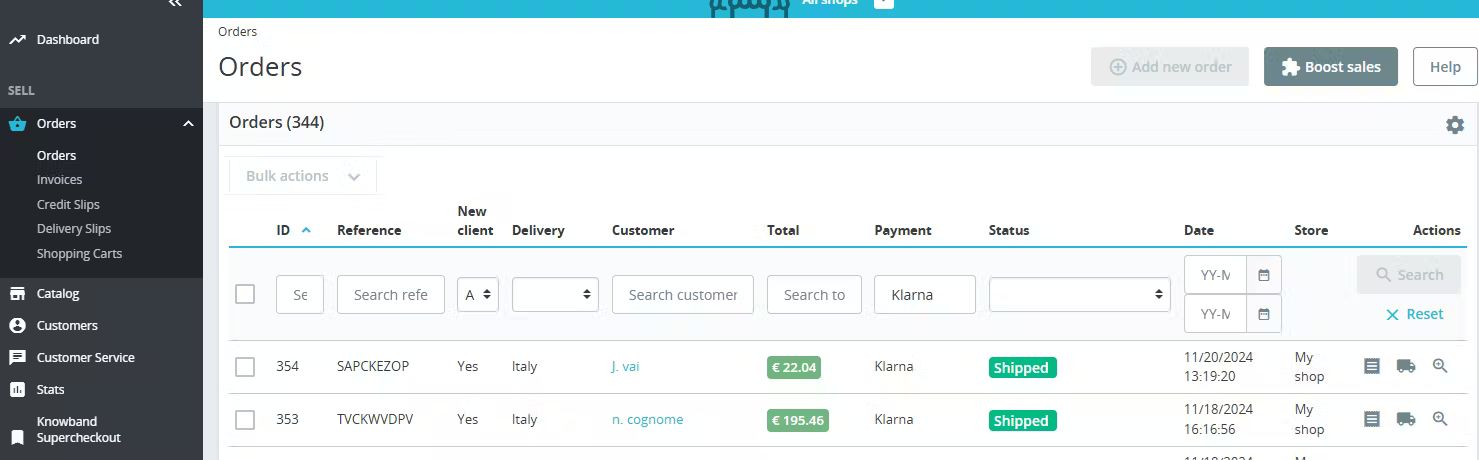
Orders on PrestaShop back office
Each Klarna purchase contains a Klarna section in the PrestaShop order details page. This section displays:
- Klarna reference number
- Klarna payment status
- Actions available, such as capture or refund
- A link to view the purchase in the Klarna Merchant Portal
- A history of all Klarna related events
Integration requirement
Important
Actions performed directly in the Klarna Merchant Portal do not update automatically in PrestaShop. Always perform post purchase actions in PrestaShop unless directed otherwise by support.
Capturing Klarna orders
Klarna authorizes the payment during checkout, but the payment is not collected until you capture it. PrestaShop allows both automatic and manual captures based on your module settings.
Manual capture
To capture a payment manually:
- 1.Open the Klarna purchase in PrestaShop.
- 2.Go to the Klarna section.
- 3.Select Capture payment.
- 4.Confirm the capture.
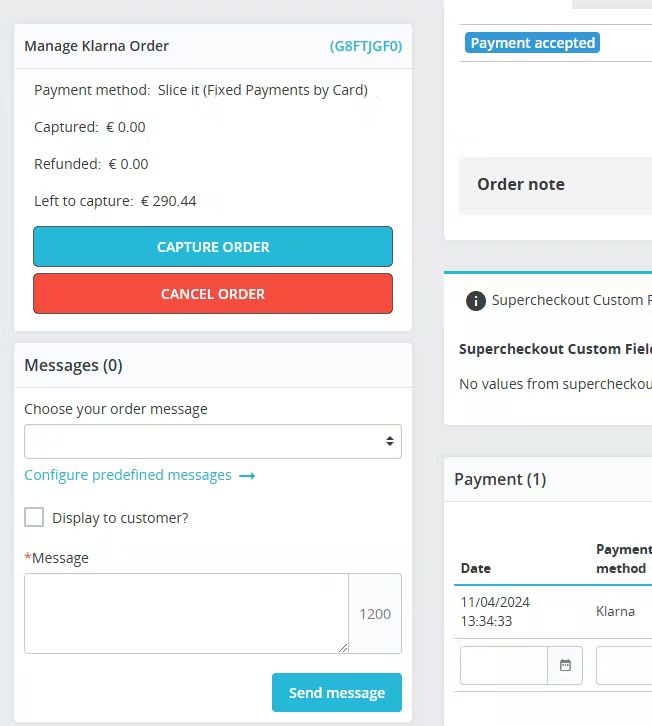
Prestashop manage order settings
After capture:
- The Klarna status updates to Captured
- PrestaShop updates the order status based on your configuration
- Klarna charges the customer based on the selected payment plan
Integration requirement
Important
Once you capture a payment, it cannot be reversed. You can only issue refunds.
Partial capture
If you ship an order in multiple shipments, you can capture only the items or amounts being shipped.
To perform a partial capture:
- 1.Open the purchase.
- 2.Select Capture order.
- 3.Choose individual items or enter a partial amount.
- 4.Confirm the capture.
The module prevents capturing more than the remaining authorized amount.
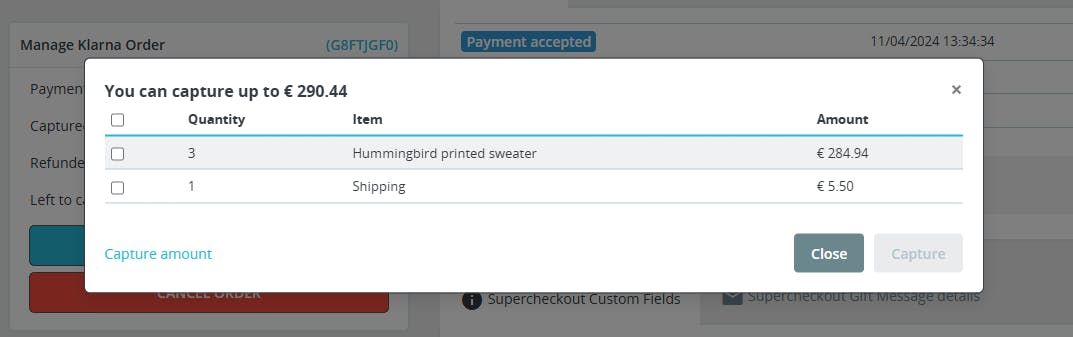
Partial capture in Prestashop
You can perform multiple partial captures until the full purchase amount has been captured. All partial captures appear in the Klarna history within the purchase.
Canceling a Klarna order
You can cancel a Klarna order only if the payment is still authorized and has not been captured.
To cancel:
- 1.Open the purchase.
- 2.Select Cancel order.
- 3.Confirm the cancellation.
After cancellation:
- The Klarna authorization is voided
- PrestaShop updates the order status to the canceled status you selected during configuration
Integration requirement
Important
If any part of the purchase has already been captured, cancellation is not possible. You must issue a refund instead.
Refunds
Refunds apply only to captured purchases. You can refund the full amount or refund item by item or by custom amount.
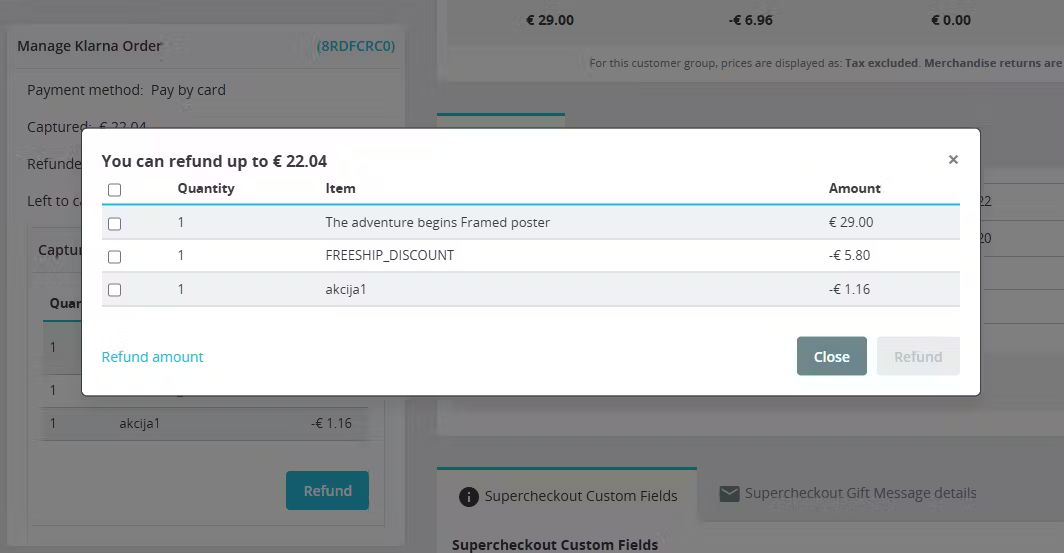
Refunds in Prestashop
Full refund
- 1.Open the purchase.
- 2.Select Refund order.
- 3.Select all items or the full amount.
- 4.Confirm the refund.
Partial refund
- 1.Open the purchase.
- 2.Select Refund order.
- 3.Choose specific items or enter a partial amount.
- 4.Confirm the refund.
After the refund:
- Klarna updates the customer’s payment schedule
- The refund event appears in the Klarna history
You can issue multiple partial refunds as long as captured value remains.
Releasing remaining authorization
If only part of the purchase is captured, Klarna keeps the remaining amount authorized until you release it.
To release the remaining authorization:
- 1.Open the purchase.
- 2.Select Release remaining authorization.
This clears the remaining authorization, ensuring the customer is not expecting additional charges.
Integration requirement
Important
Once the authorization is released, it is not possible to capture the remaining amount.
Shipment tracking information
When tracking numbers are added in PrestaShop, the Klarna module automatically sends shipment details to Klarna during the capture event when supported.
Recommended for integration
Providing tracking information helps Klarna communicate shipping updates to customers.
Initial payment method
Klarna provides the initial payment method only in English. Since PrestaShop requires localization across multiple languages, the initial payment method may not be shown to customers on the confirmation page.
This does not affect the purchase or post purchase functionality.
Jump to section...