

Dispute management via Partner Portal
In this article you will find an overview of all features provided in the Merchant Disputes app and how to handle and respond to disputes.
23 min read
Klarna’s Dispute App with in Partner Portal allows you to review, respond to, and resolve disputes initiated by customers. This guide explains how to use the Partner Portal to manage disputes efficiently, avoid chargebacks, and stay informed about key resolution deadlines.
The Portal provides an intuitive interface where you can:
- View all active and past disputes
- Submit evidence or responses
- Configure notification settings
- Track dispute outcomes and fees
All dispute management functionality is housed within the Disputes App in Klarna’s Partner Portal. This app is accessible from the left-hand navigation panel and includes several tabs designed to help you stay organized and act on the most urgent cases.
| Tab | Purpose |
|---|---|
| Open Disputes | Active disputes that require your response. Prioritized by earliest deadlines. |
| Unauthorized | Disputes flagged as suspected fraud. Typically require quicker response. |
| High-Risk Orders | Orders with an elevated risk of dispute. Review recommended before shipment. |
| All Disputes | Historical log of all disputes from the past 180 days. Useful for audits or analysis. |
These tabs help you identify which disputes need immediate attention and provide filters and search functions for managing large volumes.
The Settings area in the Disputes App allows merchants to configure:
- Notification recipients for dispute alerts (per Merchant ID and market)
- Language preferences for messages and email alerts
- Chargeback thresholds, which define a minimum dispute amount below which the case may be auto-resolved (useful for low-value claims)
The Disputes App is your central workspace for resolving Klarna disputes. Whether you're addressing one dispute or managing dozens per week, the app offers all the tools you need to respond quickly and accurately.
Dispute lifecycle
The lifecycle of a dispute follows a consistent, clearly defined path. Understanding each stage helps you respond on time and avoid unnecessary chargebacks. Learn more about the Disputes life cycle here.
Upon opening the Disputes App, you’ll land on the Open Disputes tab by default. This shows a prioritized list of disputes that require your attention.
On the "Open disputes" page, you will be able to find all these disputes that require input in order to be resolved. Generally, all open disputes will be organised based on their respective deadlines, with the dispute having the nearest deadline being prioritised and placed on the top of the list.
The "Open disputes" page is divided into two tabs:
- 1.Response required: These disputes are awaiting your response. Please click on the button ‘Respond’ in order to open the dispute detail page, where you are able to defend the dispute by submitting your response.
- 2.Under review: Disputes under review have already been responded to by you. These cases are ready to be picked up by our Dispute Resolution team in order to be resolved. Within Open Disputes tab you will be able to search and filter based on different parameters:
- Search by:
- Dispute ID: Klarna's unique numeric ID for that dispute
- Store KRN: Klarna Reference Number for your store (e.g.
K1234567) — returns all disputes for that store - Dispute KRN: The full dispute identifier in the format
krn:klarna:eu1:dispute:<reason>:<id>— returns one specific dispute - Order number
- Customer name
- Customer email
- Merchant reference: Your reference number to the corresponding order
- Filters to narrow by:
- Reason: Displays Dispute Reason chosen when dispute was raised
- Dispute created: Date the dispute was raised by the customer with Klarna
- Assigned user: Username if you assigned the dispute to one of your agents
- Status: Current status of the dispute. The following status are available in general: response required, under review, no response required, closed. A detailed explanation of each status can be found here.
- Sorting: Disputes are auto-sorted by earliest response deadlines, making it easy to handle urgent cases first.
- Deadline: Date and time by which you have to respond to the request. Disputes with the shortest remaining deadline are automatically display at the top
- Action: Actions that can be taken in terms of either responding or viewing the open dispute.
Tip
Tip: Use the All Disputes tab to view historical data and dispute trends (up to 180 days back).
| Status | |
|---|---|
| No response required | This status contains two types of disputes.
|
| Response required | After the investigation started, meaning that the customer and you have not been able to reach a resolution, Klarna steps in to support. After we have gathered all relevant information from the customer, we will contact you requesting information in order to support solving the dispute. A dispute request is sent with a deadline for submitting requested information. The deadline for the first request is 14 days (336 hours) for all dispute reasons, with the exception of Unauthorized Purchases, where the deadline is 7 days (168 hours). For each follow-up request sent to you, you have a deadline of 7 days (168 hours). |
| Under review | This means that you submitted your information and our Dispute Resolution team is ready to pick up the case again, in order to resolve the dispute. |
| Closed - Merchant won | This means that the dispute was closed and you defended the dispute successfully. |
| Closed - Merchant lost | This means that the dispute was closed in favor of the customer and you will be held liable to pay. Thus, we will activate a chargeback towards you. |
| Closed - Merchant refunded order | You solved the dispute by refunding the order yourself. One very common example is in the case of a return. E.g the customer informed us about a return and you received the return and updated the statement towards the customer accordingly. |
| Closed - Merchant accepted loss | Once we send you a dispute request, you have the possibility to accept the loss for the dispute. In this case, we will resolve the dispute for you by performing a chargeback. |
| Closed | As ‘high-risk orders’ are not considered 'typical' disputes, and thus do not follow the same process, these cases do not end up with a decision in favor of the customer or you. These cases get solved by you canceling the order or providing us with the shipping information in case the order was already sent. |
When you click into a specific dispute, you’ll enter the Dispute Detail View, where you can review the full case and respond accordingly.
If you want to respond to a dispute follow the steps below:
Before submitting, review:
- The Requirements field in the Requests section — this shows the specific question Klarna is asking (e.g. "Have you received the return?" for a Return dispute). The response form adapts to the dispute reason, so read this carefully before uploading evidence.
- Information provided by the customer if available. This shows what the customer told Klarna. If it reads "Information not yet available", Klarna is still processing the customer's information — you can still submit your evidence in the meantime.
How to respond:
- 1.On the ´Open Disputes´ page, click Respond.
- 2.Upload evidence files (e.g., tracking proof, return confirmation, product photos).
- 3.Add comments to explain the situation or highlight supporting details.
- 4.Click Submit.
Once submitted:
- The dispute status changes to Under Review.
- Klarna will review the evidence and determine the outcome.
Integration requirement
Evidence uploaded should meet the following criteria:
- File types: PDF, PNG, JPEG
- Max file size: 7.3MB per file
- Upload before deadline, 14 days from Klarna’s escalation notice (7 days for follow-up requests)
On the Open Disputes page, you can take action on disputes before going to the individual page.
For example, if you do not want to handle disputes with a low value, you can select one or multiple disputes (by checking the box) and click the ´Accept Loss´ button. Note that if you select the header checkbox, all disputes in the table (on all pages) will be selected. This checkbox is only selectable if all disputes in the table have the same currency and have a dispute amount available.
To quickly identify and sort disputes you want to accept the loss for, you can sort the Dispute amount (for example from lowest to highest) or use the Dispute amount filter.
Integration requirement
Once you accept the loss, the dispute(s) will be closed with a chargeback. Therefore, when clicking the Accept loss button you will need to confirm your decision, one more time.
As contractually stated, if you do not respond to our dispute requests within the given timeline, you are held liable for the dispute. Therefore, we will activate a dispute-related chargeback towards you and resolve the case in favor of the customer. In order to prevent such losses, please make sure to respond to all dispute requests before the deadline expires.
In order to win a dispute, you need to provide valid proof. If you are unable to provide this proof (for example proof of delivery), you are held liable for the dispute. Therefore, we will activate a dispute-related chargeback towards you and resolve the case in favor of the customer.
You are able to accept losses for disputes. By accepting the loss for a dispute, you do not need to investigate any further into the case. We will close the dispute for you by activating a chargeback towards you. Therefore, the dispute will be resolved in favor of the customer.
You can track the real-time status of any dispute through the Dispute Detail View.
The statuses shown here match the Dispute Statuses defined earlier in this guide:
- No response required: The dispute is within its Resolution time, or in the first investigation phase — no action needed from you yet.
- Response required: Awaiting your response by the given deadline.
- Under review: You submitted your information and Klarna's Dispute Resolution team is evaluating the case.
- Closed - Merchant won: Resolved in your favor.
- Closed - Merchant lost: Resolved in favor of the customer; a chargeback is activated towards you.
- Closed - Merchant refunded order: You resolved the dispute by refunding the order yourself.
- Closed - Merchant accepted loss: You accepted the loss; Klarna closes the case with a chargeback.
You will also see:
- Closing Reason (e.g., insufficient evidence, goods delivered, unauthorized confirmed)
- Dispute Fee (if applicable)
- Chargeback Amount
Export for tracking
All this information can be exported or used for internal dispute tracking and training.
Disputes flow 2020 statistics
This section describes the Statistics page under the Disputes Flow 2020 folder. If you have been onboarded to the new dispute flow, Disputes Flow 2026 has its own Statistics page with a few differences — see Statistics in the V4 guide.
Disputes App in Partner Portal also provides dashboard insights to help you identify trends and optimize performance on dispute management.
The dashboard can be found on the Statistics tab (titled "Returns and Disputes Overview" in the portal) and serves as a tool for you to gain insights into your customer's dispute behavior, your own performance as well as visualizing the costs incurred.
Statistics data delay
Data displayed in the Statistics tab may have a delay of up to 48 hours. The dashboard covers the last 6 months by default; you can adjust the date range and filter by store, market, currency, and dispute reason.
Understanding "Investigation started": Throughout the dashboard you will see the metric "Investigation started". This refers to cases that were not resolved within the standard Resolution time and therefore escalated to a formal Klarna investigation. A high investigation started rate indicates many of your disputes are escalating beyond the initial resolution window — this is a key metric to monitor and reduce.
Dashboard highlights:
- Volume of disputes by type
- Win/loss rates
- Most common closing reasons
- Associated chargeback amounts
- Dispute fees paid over time
Use this data to monitor operational risks and train your support team for better outcomes.
Below you will find the data dashboard overview split up in sections with an explanation of each information box and chart. An expanded version of the descriptions will be available to you if you go to the information icon in the top right of each box.
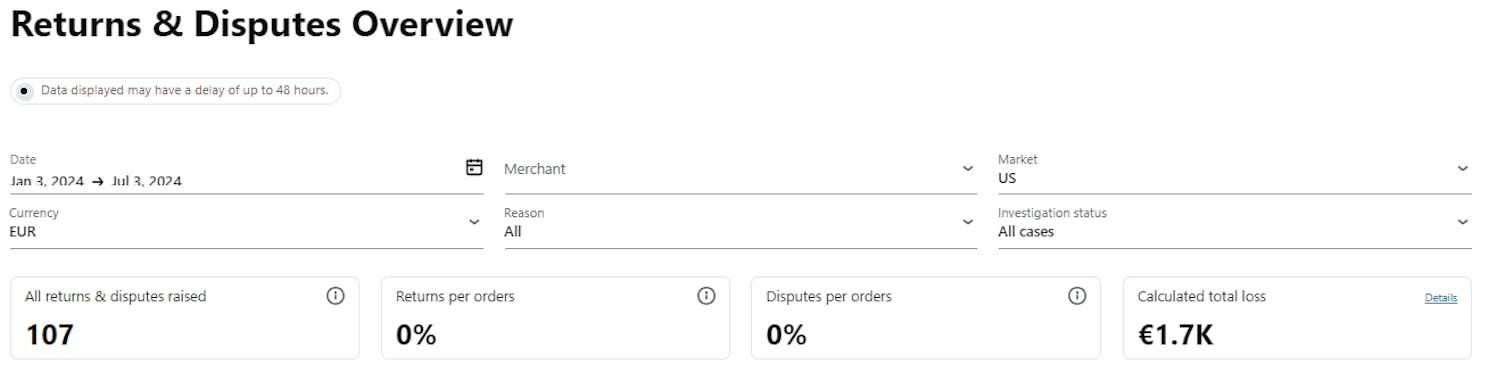
All returns and disputes raised - Total count of disputes being raised for the selected time frame.
Returns per orders - Compare the % of Returns vs # of orders placed within the same month (excl non-return disputes). Add this number with dispute per Orders to get the total Dispute rate.
Disputes per orders - Compare the % of disputes raised to the # of orders placed within the same month (excl Returns). Add this number with Returns per Orders to get the total Dispute rate.
Calculated total loss - Convert your losses from various currencies into one.
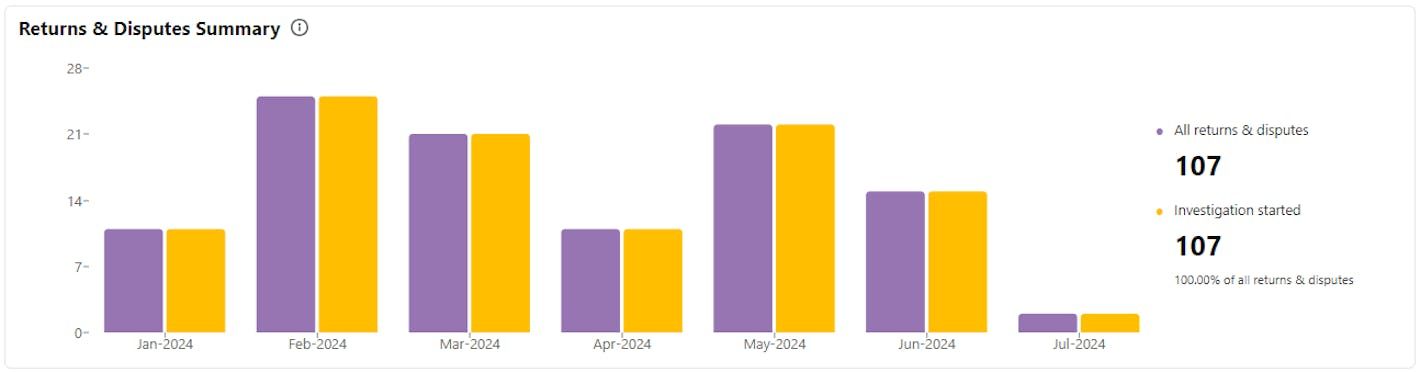
This chart gives you a summary of all the disputes that have been raised to Klarna. It shows how many of them have not been resolved within the Resolution time meaning the investigation started. It also shows the percentage of cases that have started an investigation out of the total number of cases within the same time period.
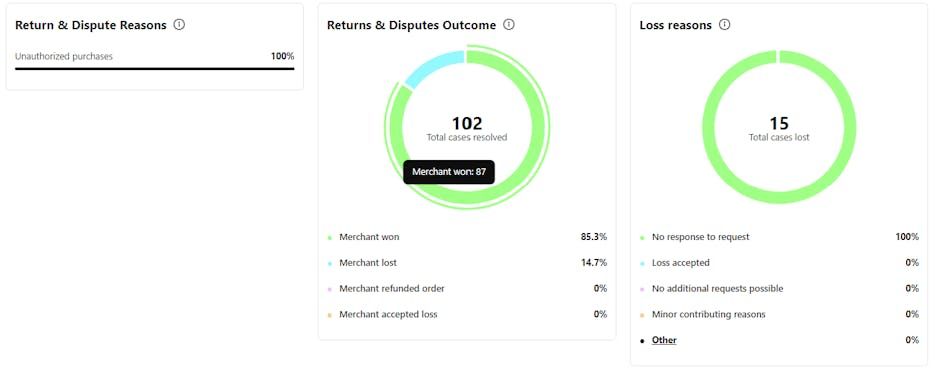
**Return and Dispute Reasons **- The above chart provides a breakdown of the reasons for disputes and the distribution across different Dispute reasons.
Returns and Disputes Outcome - The above chart shows how resolved cases are distributed based on the reason for closing.
Loss reasons - This chart displays the distribution of lost cases based on the reasons for their outcome.
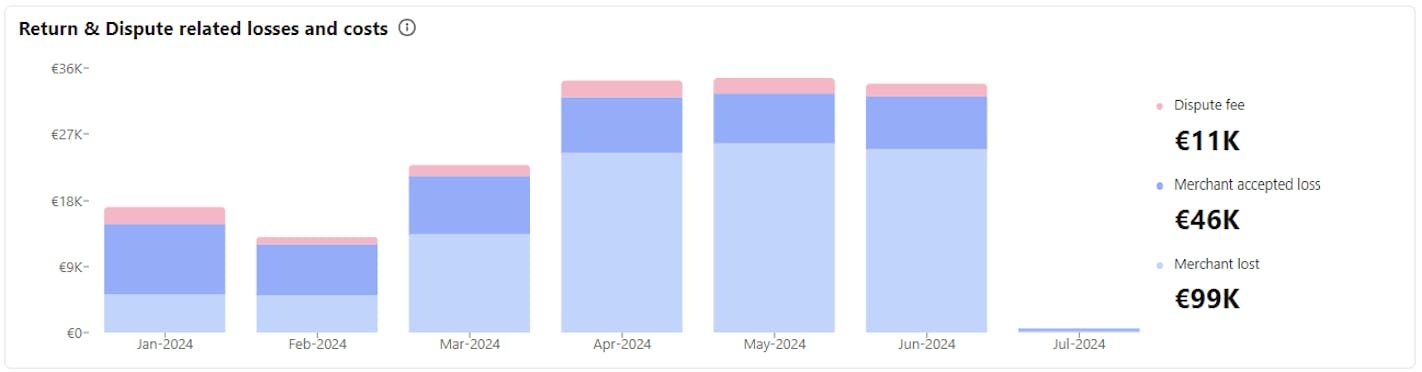
This chart provides an overview of the categories for which you have incurred losses and costs.
Dispute fee - Fees that are charged to cover operational expenses related to dispute for which you are responsible or for cases where resolution exceeds the designated time frame following the commencement of the investigation.
Merchant accepted loss - Chargebacks that you have accepted, either individually or due to a set chargeback threshold, resulting in a loss for you.
Merchant lost - Chargebacks for cases that have been resolved in favor of the customer, resulting in a loss for you.
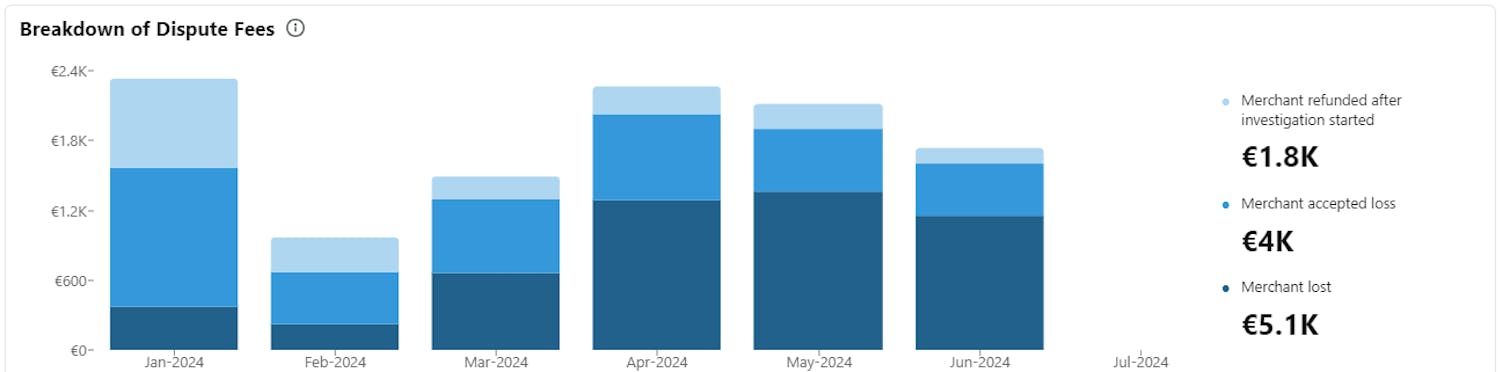
The above chart provides an overview of the categories for which you have incurred Dispute fees.
Merchant refunded after investigation started - Dispute fees charged for cases where you refunded the customer after Klarna stepped in to support the resolution (after investigation started).
Merchant accepted loss - Dispute fees charged for cases where you accepted to lose the case or receive a chargeback.
Merchant lost - Dispute fees charged for cases where you lost the dispute.
The Statistics page includes a personalised Returns and Disputes Improvement Guide, accessible via the "Get insights" button at the top of the page.
The guide is refreshed on the 5th of each month and is based on the last 3 calendar months of your data. For each dispute reason category (Returns, Goods not received, Faulty goods, Incorrect invoices) it shows your Dispute Rate and Investigation started rate, and benchmarks them against Klarna's baseline (e.g. "3X higher than normal").
Each metric card links to a Tips and Tricks panel with specific recommendations:
- Offer self-service returns with a label or QR code
- Never charge return fees
- Provide a domestic return address
- Register returns promptly
- Send a confirmation email with the expected refund timeline
- Deliver within 20 days of order date
- Share a traceable tracking ID via order confirmation and shipping emails
- Include clear shipping timelines in your website FAQ
- Provide accurate product descriptions and images at checkout
- Define your faulty goods policy clearly
- Process refunds or replacements swiftly
- Ensure customer service can respond within 2 business days
- Keep site inventory up to date
- Ensure checkout shows accurate item details, prices and totals
- Prevent duplicate orders
- Send accurate order data to Klarna
Proof of delivery tip
A common loss reason is insufficient proof of delivery. If your Goods not received dispute rate is high, prioritising delivery proof in your evidence submission will have the greatest impact on your win rate.
For the full guide with detailed recommendations, visit the Merchant Improvement Guide on docs.klarna.com.
The "Unauthorized purchases" page is structured the same way as the "Open disputes" page. However, on this page, you will only find disputes with the reason "Unauthorized purchases".
These cases are raised, or flagged, by the customer as potential fraud. Therefore, these disputes are more sensitive and have a shorter deadline (7 days / 168 hours) compared to general disputes such as ‘returns’ (14 days / 336 Hours).
The "High-risk order" page is structured the same way as the **"Open disputes" **page.
Keep in mind that "High-risk order" is not a dispute reason as per Klarna’s definition. Disputes listed in this section are not raised by a customer, instead these have been identified as high risk based on Klarna's internal monitoring systems, set in place to protect you from potential fraudulent activities.
What action to take:
- If the order has not yet shipped: Cancel the order immediately.
- If the order has already shipped: Attempt to stop or intercept delivery (e.g. contact your carrier). If the order cannot be stopped, provide Klarna with the shipping information so the case can be reviewed.
Recommended for integration
High-risk orders are very time-sensitive. Actively monitor this page and act as soon as an order appears here. Note that the grouped reminder email for high-risk orders is sent within 24 hours of the deadline, compared to 72 hours for standard disputes — so you may have less warning time than you are used to.
On the "All disputes" page, we provide you with an overview of all disputes raised with Klarna. This includes:
- Disputes that have been raised with Klarna, but have not yet been classified as cases that need our Dispute Resolution team in order to be resolved
- Disputes where our Dispute Resolution team stepped in and requested information from you in order to resolve the case
- Disputes where you provided input and now is under review
- Disputes that have been resolved.
On the "All disputes" page, all cases are sorted by the "dispute created" date. This means the dispute with the oldest creation date (the case that is open the longest) appears on top.
Further, the "All disputes" page is divided into four tabs:
- All - All Disputes in one overview including all status: response required, under review, no response required, closed
- Open - All disputes which require your input or are under review since you already submitted the information.
- No response required - All disputes that have been raised with Klarna which are either within the Resolution time or are in the first phase of investigation by our support teams. Resolution time: Klarna pauses the invoice and holds the case while the customer and you have time to resolve the dispute with one another.
- Closed - All disputes that have been resolved. However, for legal reasons, all cases are removed from the Disputes App 180 days after they have been resolved.
The "Email and Dispute Settings" page consists of two sections: "Email and Notification" and "Chargeback Threshold".
In this section, administrators can add or modify contact emails and select the preferred language for dispute notifications. The ´Local´ language refers to the language used in the market where the order was placed. There are four sub-sections:
- 1.Disputes - Assign a single email and language for each merchant ID.
- 2.Unauthorized Purchases - Provide multiple email addresses for each merchant ID.
- 3.High-Risk Orders - Add multiple email addresses for each merchant ID.
- 4.Notifications - Customize the frequency of reminder emails per dispute category (Disputes, Unauthorized Purchases, High-Risk Orders) independently. Available options:
- 4.1.Grouped reminder email before expiration — one email when you have at least one dispute expiring within 72 hours (24 hours for High-risk orders)
- 4.2.Daily grouped reminder email (default) — one email per day if you have at least one dispute requiring response
- 4.3.Email notification for each dispute — an email for every individual dispute as soon as it appears in the app
- 4.4.Disabled — no reminder emails for that category
Note that Unauthorized Purchases and High-risk orders notification settings are configurable per market (e.g. Germany, Austria separately), while Disputes settings are per merchant ID.
Administrators can set a chargeback threshold for each currency and merchant ID. If a dispute remains unresolved after the 21-day resolution period, instead of routing the case to you for defense, Klarna automatically closes it with a chargeback — no action required on your end.
Chargeback threshold scope
The chargeback threshold applies only to the first dispute raised on a capture. If the same capture is disputed again, the threshold is not applied — the case is sent to you as a normal dispute request, and if you do not respond it can be closed against you with a dispute fee.
Example
Example:
You set a 10 EUR threshold. A customer raises a dispute for 7 EUR. After 21 days without resolution, Klarna auto-closes the case and issues a chargeback. You never see a dispute request — and you pay no dispute fee.
Benefits for merchants:
- No time spent defending low-value cases
- Focus resources on high-value cases
- No dispute fee charged for cases closed due to chargeback threshold
- Configurable per currency and store (MID)
- 1.Go to the Disputes App in Merchant Portal -> Email and dispute settings -> Chargeback threshold.
- 2.Select the MID (store) you want to configure.
- 3.Click Add currency.
- 4.Select the currency and enter the threshold amount.
- 5.Click Save.
- 6.Edit or remove at any time from the same view.
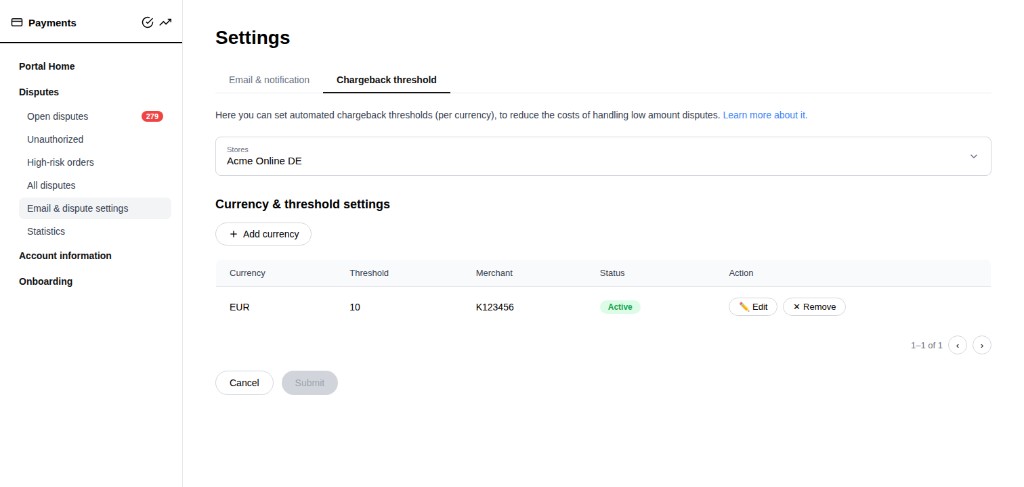
Disputes App — Chargeback threshold settings
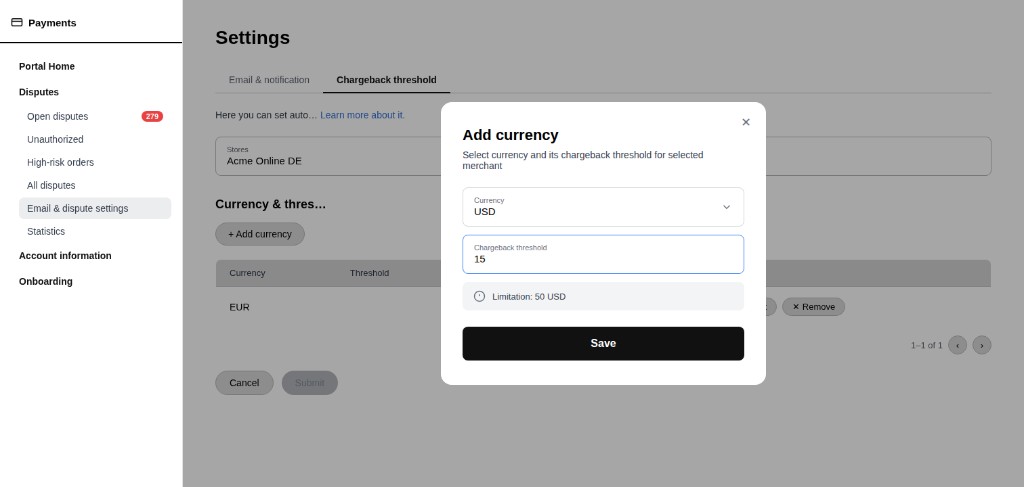
Adding a currency and threshold
To safeguard you from human error, we have implemented a maximum amount you can set as threshold.
| Currency | Amount |
|---|---|
| EUR | 50 |
| SEK | 500 |
| NOK | 500 |
| DKK | 500 |
| GBP | 50 |
| PLN | 500 |
| USD | 50 |
| CAD | 50 |
| AUD | 50 |
| NZD | 50 |
| CZK | 1000 |
| RON | 250 |
| CHF | 50 |
| MXN | 1000 |
| HUF | 20000 |
To help facilitate a smooth customer experience, Klarna displays the Merchant’s Customer Service Information to the customer when raising a dispute. This is where Klarna directs the customer should they need to contact you regarding raising a dispute or for further inquiries.
If you want to add or update your Customer Service Information you can easily do it in the Merchant Dispute App in 2 steps:
- 1.Click on "Settings" (bottom left corner)
- 2.Customer Service Information
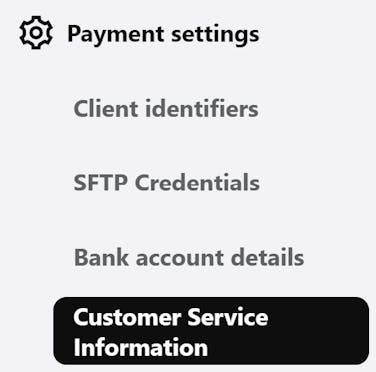
When selecting Customer Service Information you, are presented with the following fields:
- The MID
- Which Market the information should be displayed in (if you choose Global, it will displayed in all markets that do not have individual information set)
- Customer Service Email
- Customer Service Phone Number
- Contact Form URL
- Chat service URL
Return policy information
- Return Policy URL
- Days Limit for Return and Refund Policy
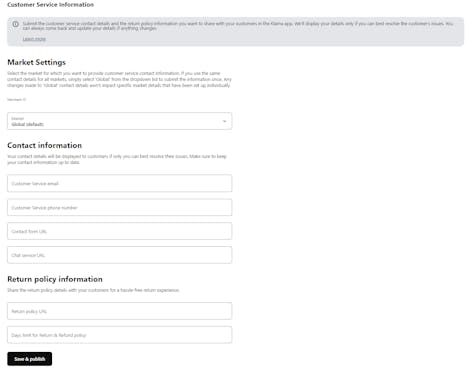
Once updated, your contact information will be displayed to the customer, ensuring that they follow your dispute policy.
Jump to section...