

Disputes app in Merchant Portal (V4)
How to view, respond to, and manage Disputes Flow 2026 disputes in Klarna's Merchant Portal.
12 min read
Klarna is introducing a new dispute flow, Disputes Flow 2026. From the date your store is moved to the new flow, disputes raised onward are handled under Disputes Flow 2026. Disputes raised before that date continue to appear under Disputes Flow 2020 and follow the legacy process.
API version mapping
If your store uses the Disputes API alongside the Merchant Portal, Disputes Flow 2026 corresponds to API V4 — your onboarding date is your V4 onboarding date — while Disputes Flow 2020 covers the legacy V1/V2/V3 disputes. If you manage disputes only in the Merchant Portal, you can ignore the API version names and just work with the two flows described below.
Both flows are accessible from the Disputes section in the left-hand navigation of the Merchant Portal. This page covers Disputes Flow 2026. For Disputes Flow 2020, refer to the legacy Disputes App guide.
Agent guide for disputes
If you run a support or operations team, share the agent guide for handling disputes with the people who work disputes day to day — it is a simpler, task-focused walkthrough of responding to disputes in the portal.
Multi-stage review process
Disputes Flow 2026 introduces a multi-stage review process with appeal capabilities. Disputes move through up to five states:
INITIATED, REPRESENTMENT, PRE_ARBITRATION, ARBITRATION, and CLOSED. For full state definitions and transitions, see Dispute states and Disputes lifecycle.During migration, the Disputes section of the Merchant Portal shows two separate folders in the left-hand navigation:
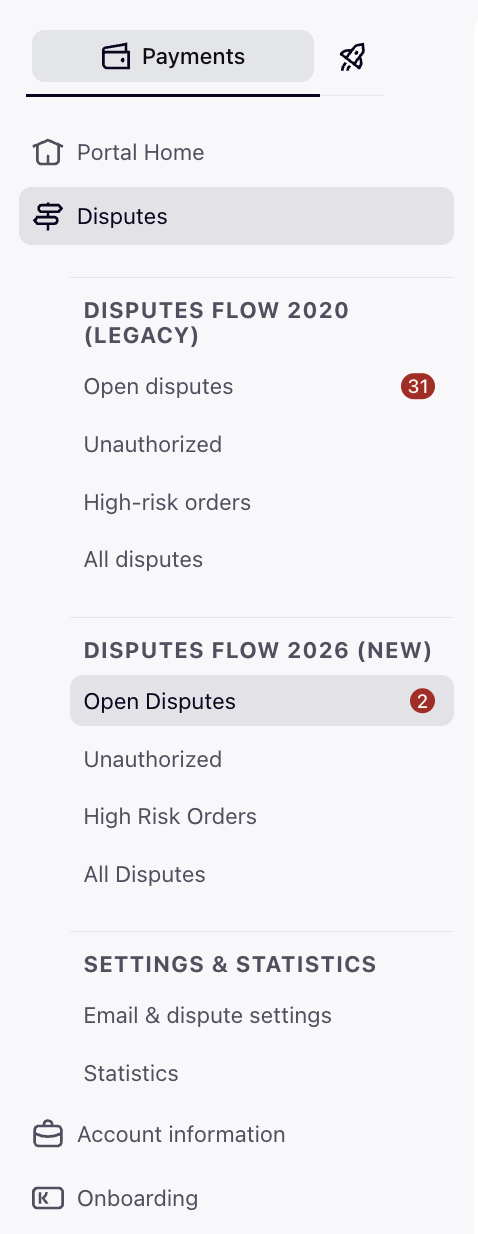
- Disputes Flow 2020 (Legacy) holds every dispute opened before your onboarding date for the new dispute flow. These continue to follow the legacy process documented in the legacy Disputes App guide.
- Disputes Flow 2026 (New) holds every dispute opened after your onboarding date for the new dispute flow. These follow the new process documented on this page.
A dispute stays in the same folder for its entire life. A dispute opened under the old process always stays in Disputes Flow 2020, and one opened under the new process always stays in Disputes Flow 2026 — disputes never move from one folder to the other. Each folder keeps its own Open Disputes, Unauthorized, High Risk Orders, All Disputes, and Statistics sections with independent counts, so you work both folders in parallel until every Disputes Flow 2020 case has closed.
Closed disputes stay visible in the All Disputes section for 180 days after they close, so the Disputes Flow 2020 folder remains in the navigation during that period — even after its last case is resolved. Once its final dispute has been closed for 180 days, the folder disappears and only Disputes Flow 2026 remains.
The Disputes Flow 2020 folder looks and behaves exactly as it does today:
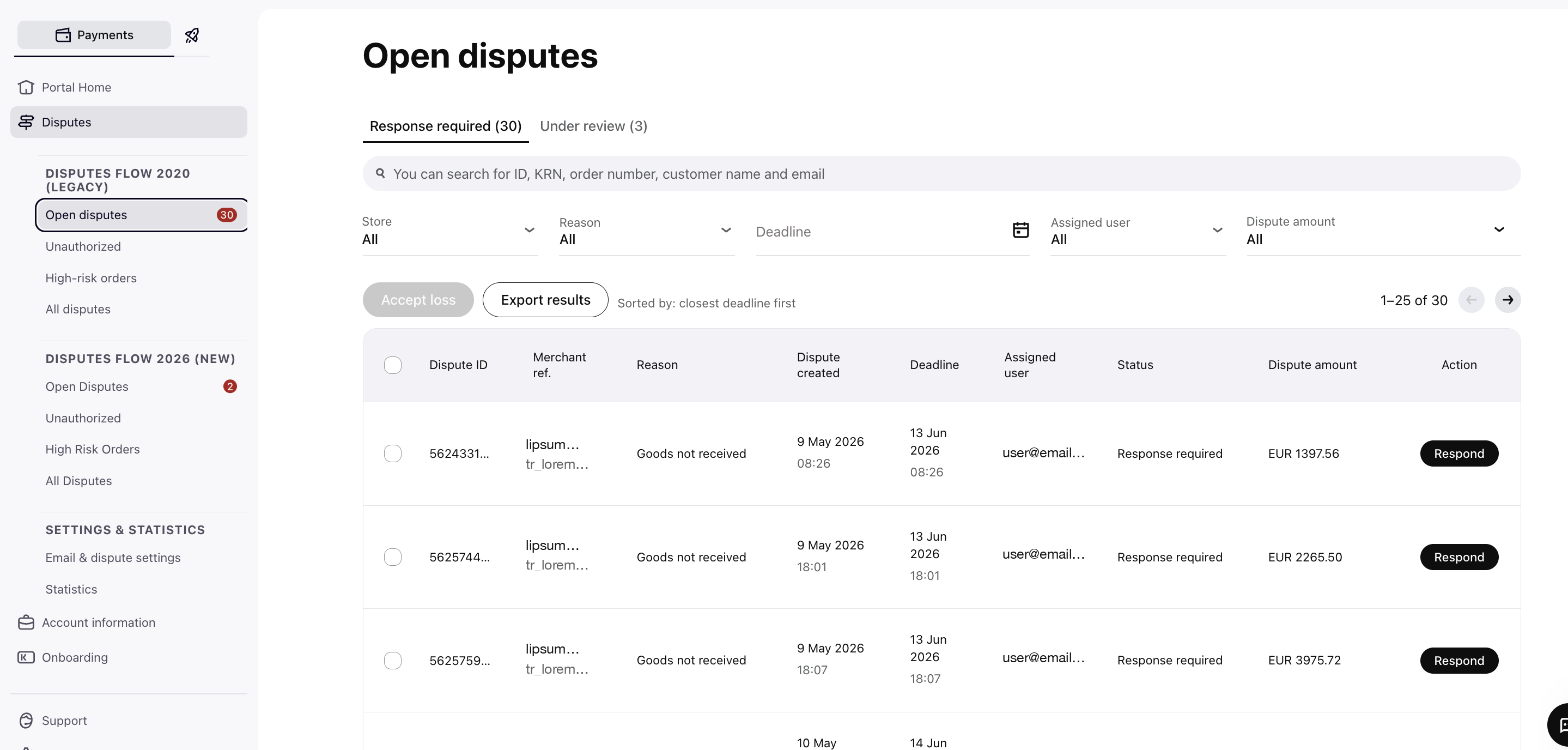
Statistics per folder
Statistics now has its own copy per folder — see Statistics below for the Disputes Flow 2026 version, and the legacy Disputes App guide for the Disputes Flow 2020 version. Email & dispute settings remains a single shared page, listed once beneath both folders.
For the framework rules, timelines, and API-level differences behind this split, see the Disputes migration to V4 guide.
Under Disputes Flow 2026, the portal provides five sections:
| Section | Purpose |
|---|---|
| Open Disputes | Disputes in INITIATED or REPRESENTMENT state that are active and require attention |
| Unauthorized | Disputes of reason Purchase unauthorized — shows only this reason type |
| High Risk Orders | Disputes of reason Purchase high-risk — flagged by Klarna's internal monitoring |
| All Disputes | Full history of all Disputes Flow 2026 disputes across all states |
| Statistics | Dashboard of Disputes Flow 2026 dispute volumes, outcomes, and losses — see Statistics below |
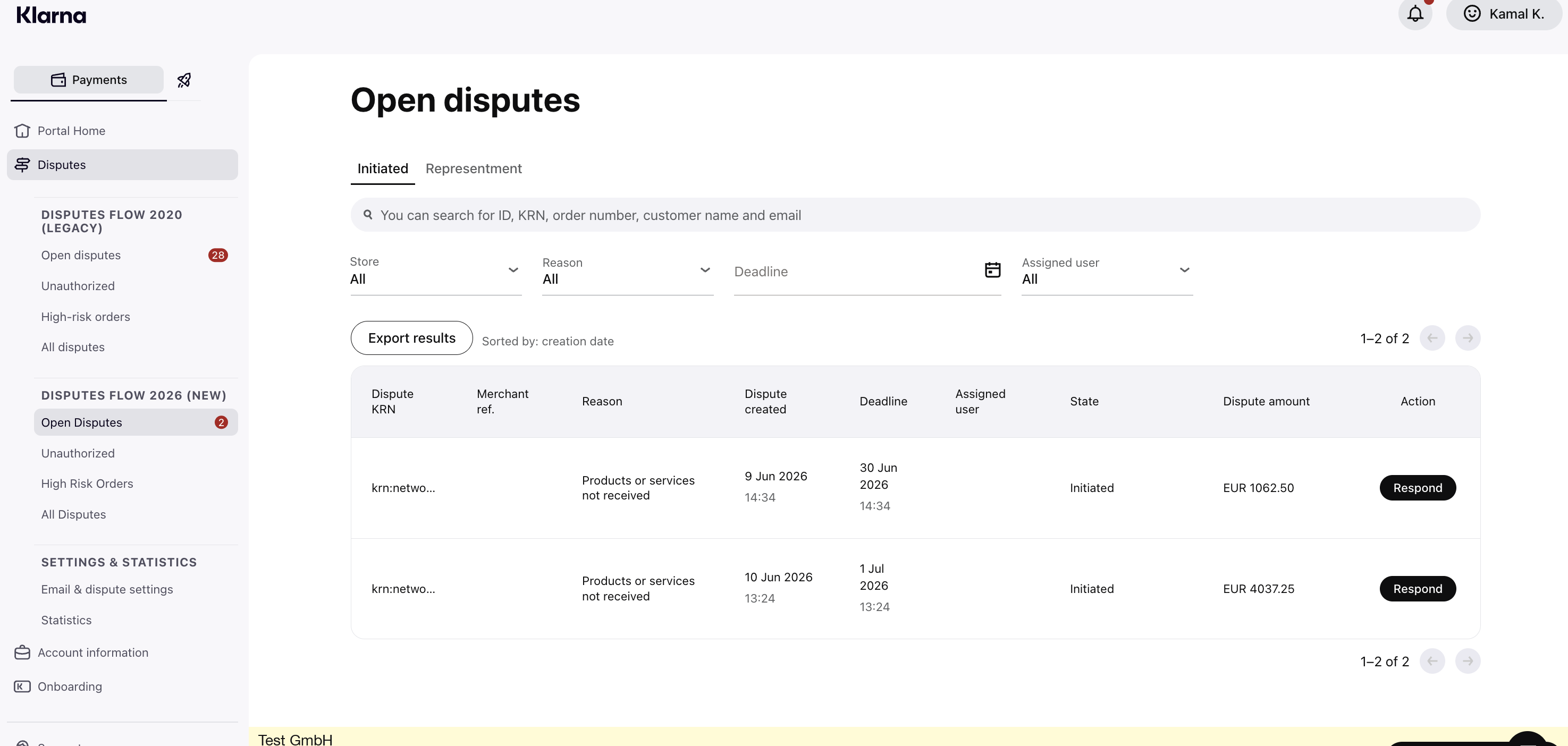
The Open Disputes page is divided into two tabs:
- Initiated — disputes in the
INITIATEDstate where Klarna has opened a case and is requesting your evidence. You must respond before the deadline shown. - Representment — disputes where you have submitted evidence and Klarna is conducting its review (up to 30 days). No further action is required during this phase.
All sections share the same search bar:
- Search by:
- Dispute ID: Klarna's unique numeric ID for that dispute
- Store KRN: Klarna Reference Number for your store (e.g.
K1234567) — returns all disputes for that store - Dispute KRN: Full dispute identifier in the format
krn:network:<region>:<environment>:payment:dispute:<id>(e.g.krn:network:eu1:live:payment:dispute:574323494838318) — returns one specific dispute - Order number
- Customer name
- Customer email
- Merchant reference: Your reference number to the corresponding order
- Filters available on Open Disputes:
- Store
- Reason: See Dispute reasons below
- Deadline: Filter by date range
- Assigned user
All lists are sorted by creation date. Export any view to CSV using the Export results button.
Disputes Flow 2026 uses an updated set of dispute reason names:
- Products or services not received — customer claims they did not receive the ordered goods or services
- Products defective or not as described — customer claims the product is faulty or does not match its description
- Refund not processed — customer claims a refund was agreed but not executed
- Incorrect amount — customer disputes the charged amount
- Purchase unauthorized — customer claims the transaction was fraudulent
- Purchase high-risk — order flagged by Klarna's internal monitoring systems as potentially fraudulent
- Non-compliance — dispute raised due to a compliance-related concern
- Non-guaranteed payment program — dispute related to a non-guaranteed payment program
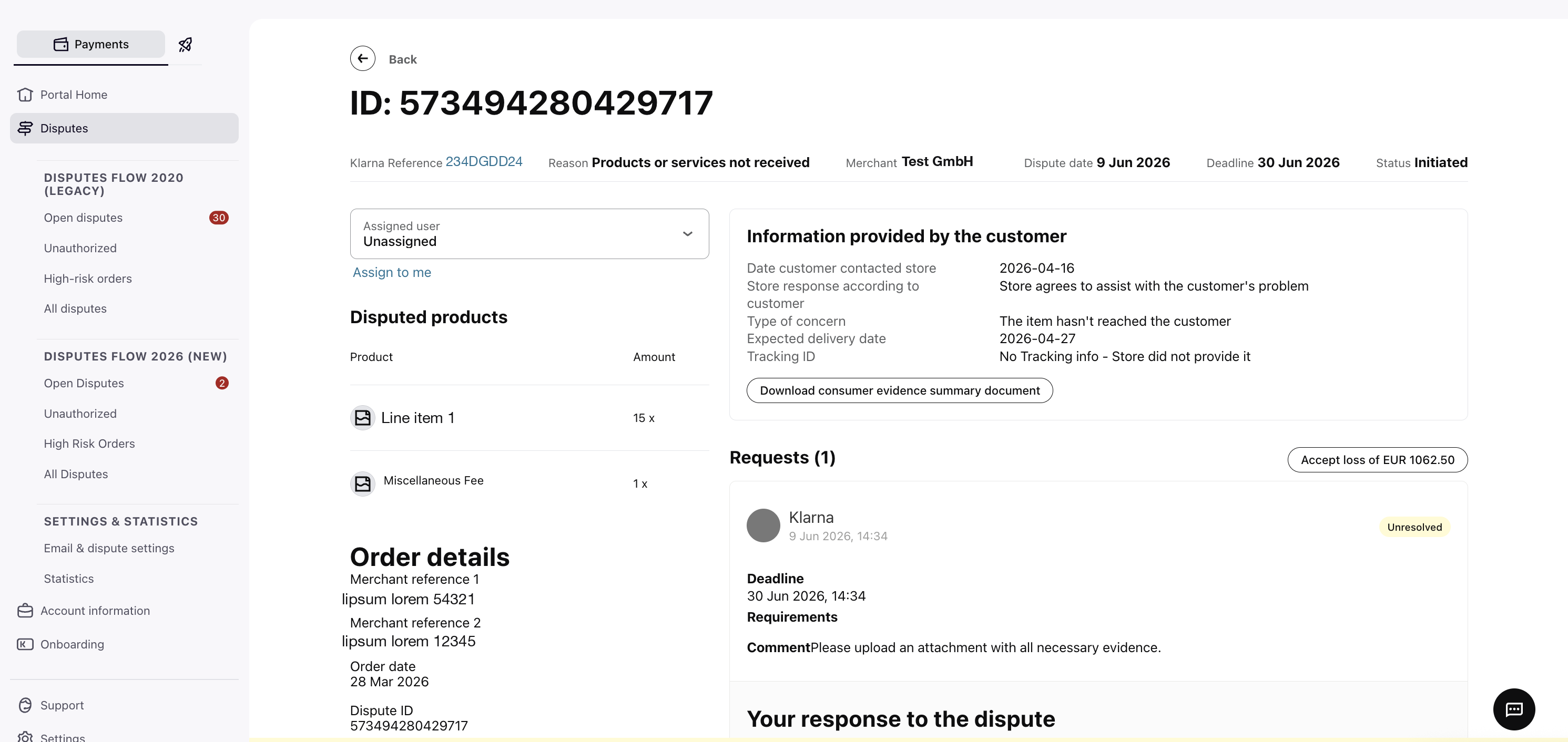
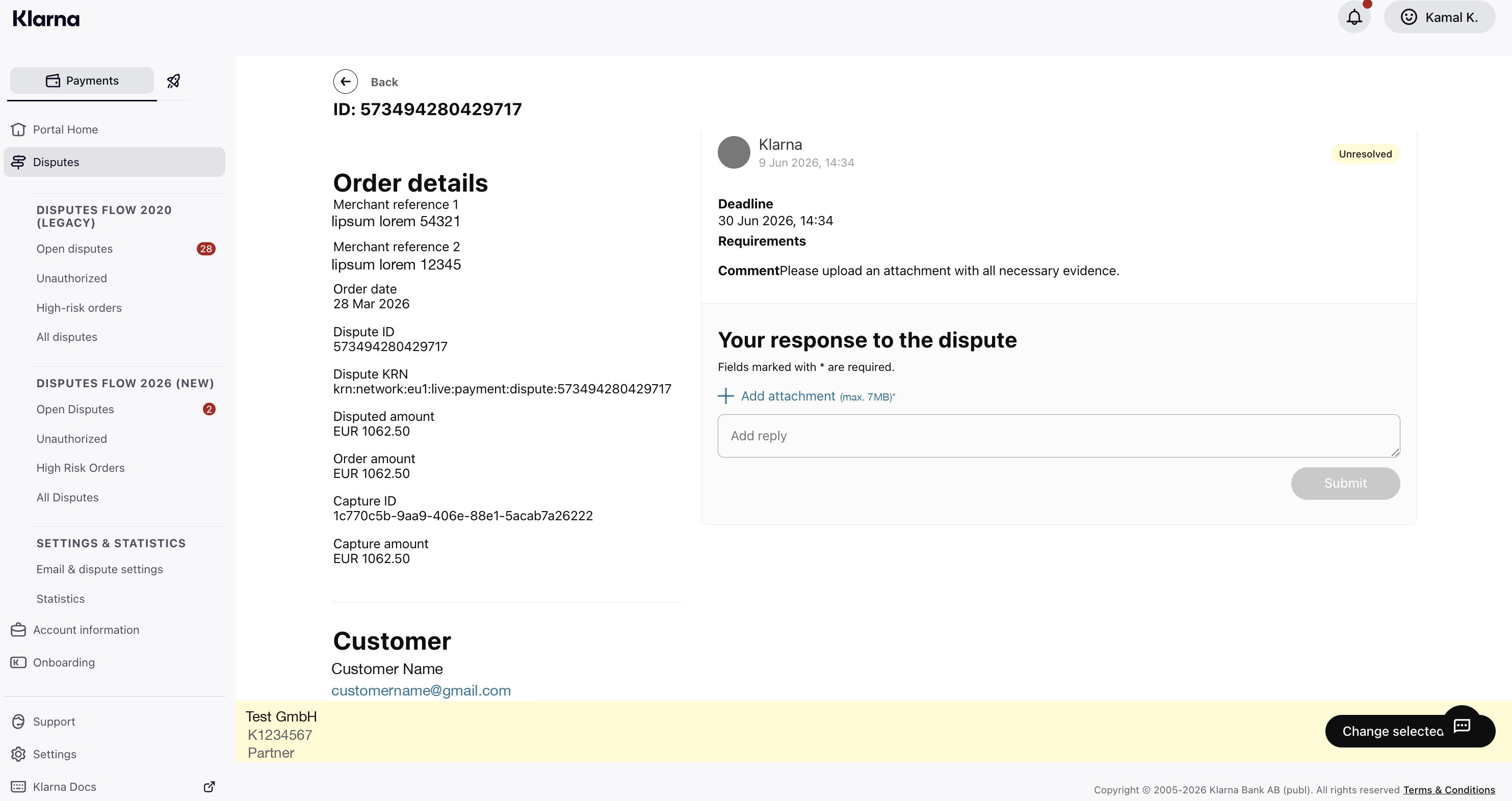
Click any dispute row to open the detail view. The header shows:
- Dispute ID and Klarna Reference (short alphanumeric code — use this when contacting Klarna support)
- Reason, Merchant, Dispute date, Deadline, Status
The detail view is split into two columns:
- Assigned user dropdown with Assign to me quick link
- Disputed products — product names and quantities from the original order
- Order details — Merchant reference 1, Merchant reference 2, Order date, Dispute ID, Dispute KRN, Disputed amount, Order amount, Capture ID, Capture amount
- Customer — name and email
Information provided by the customer shows:
- Download consumer evidence summary document — a downloadable PDF of the full customer evidence submitted to Klarna. Always available and should be reviewed before preparing your response.
- Date the customer contacted your store (when available)
- Store response according to the customer (when available)
Requests shows Klarna's open request with:
- Deadline — the date and time by which you must respond
- Requirements — free-text instructions from Klarna describing what evidence to provide (e.g. "Please upload an attachment with all necessary evidence")
- An Accept loss button showing the specific disputed amount — use this if you choose not to contest the dispute
Your response to the dispute form:
- Add attachment (required) — attach one or more evidence files in PDF format (max. 7MB per file)
- Add reply — free-text field for additional context or explanation
- Submit — submits your response; the dispute moves to
REPRESENTMENTstate
Recommended for integration
In Disputes Flow 2026, evidence submission uses free text and attachments. Unlike the legacy flow, there is no structured dropdown question — read the Requirements field carefully to understand what Klarna is asking for, then provide all relevant information in your reply and attachment.
Klarna has opened the case and is requesting your evidence. Submit evidence before the deadline shown.
Your evidence is under Klarna review (up to 30 days). No action required — monitor the state.
Klarna has issued a preliminary decision against you. You have 10 days to appeal or accept the loss. If no action is taken, the preliminary decision becomes final.
You have appealed and Klarna is conducting a final binding review (up to 14 days). No action required — monitor the state.
The dispute is resolved. The outcome is either WON (withheld amount refunded to you) or LOST (amount goes to the customer). Note that the dispute fee applies only when the dispute is lost.
For full state transition paths, see Dispute states.
The Unauthorized page shows only disputes with reason
Purchase unauthorized. These are disputes flagged by the customer as potentially fraudulent transactions.The page has the same Initiated and Representment tabs as Open Disputes, with filters for Store, Deadline, and Assigned user.
The High Risk Orders page shows disputes with reason
Purchase high-risk. These are orders flagged by Klarna's internal monitoring systems before a customer dispute is raised, and are not raised by a customer.What action to take:
- If the order has not yet shipped: Cancel the order immediately.
- If the order has already shipped: Attempt to stop or intercept delivery (e.g. contact your carrier). If the order cannot be stopped, provide Klarna with the shipping information so the case can be reviewed.
Recommended for integration
High-risk orders are very time-sensitive. Actively monitor this page and act as soon as an order appears here. Note that the grouped reminder email for high-risk orders fires within 24 hours of the deadline — so you may have less warning time than you are used to with standard disputes.
The All Disputes page shows the full history of all Disputes Flow 2026 disputes. Filters available:
- Store, Reason, Dispute created (date range), Assigned user, State
Use the State filter to narrow by: Initiated, Representment, Pre-Arbitration, Arbitration, or Closed.
All disputes are sorted by creation date. Use Export results to download the full list.
Disputes Flow 2026 has its own Statistics page, listed at the end of the Disputes Flow 2026 folder in the left-hand navigation. It shows the same kind of dashboard as the legacy Statistics page, scoped to Disputes Flow 2026 disputes only, with two differences that reflect how Disputes Flow 2026 works:
No returns concept
Disputes Flow 2026 has no concept of a "return" — a dispute only appears once it has been escalated to you. The Disputes Flow 2026 Statistics page drops all returns-branded copy and metrics accordingly; every figure on this page reflects disputes only.
Like the legacy dashboard, data may have a delay of up to 48 hours, covers the last 6 months by default, and can be filtered by date range, store, market, currency, dispute reason, and investigation status.
Summary cards:
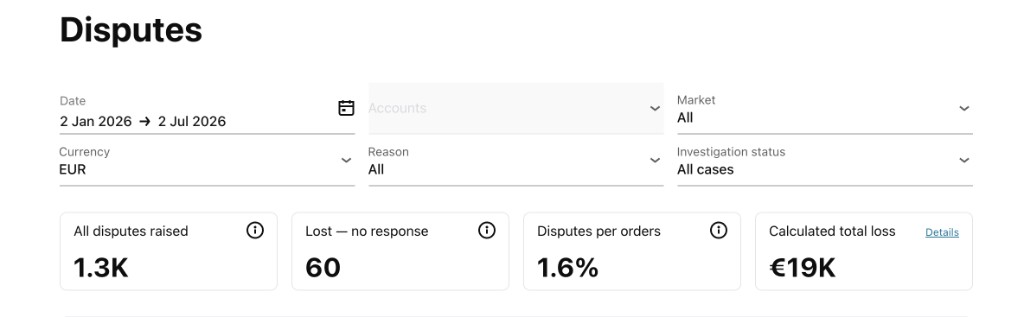
- All disputes raised — total count of Disputes Flow 2026 disputes raised in the selected time frame
- Lost — no response — count of disputes lost purely because a response was not submitted before the deadline. Unlike other loss reasons, this one is entirely within your control — respond before the deadline and it's avoidable
- Disputes per orders — percentage of disputes raised over the number of orders placed in the selected time frame
- Total losses — your losses across currencies, converted into one
Lost no response metric
In the legacy Statistics page, the second card is Returns per orders. Disputes Flow 2026 has no returns, so this slot is replaced with Lost — no response — the most actionable, avoidable loss metric for the new deadline-driven flow.
Outcomes over time:
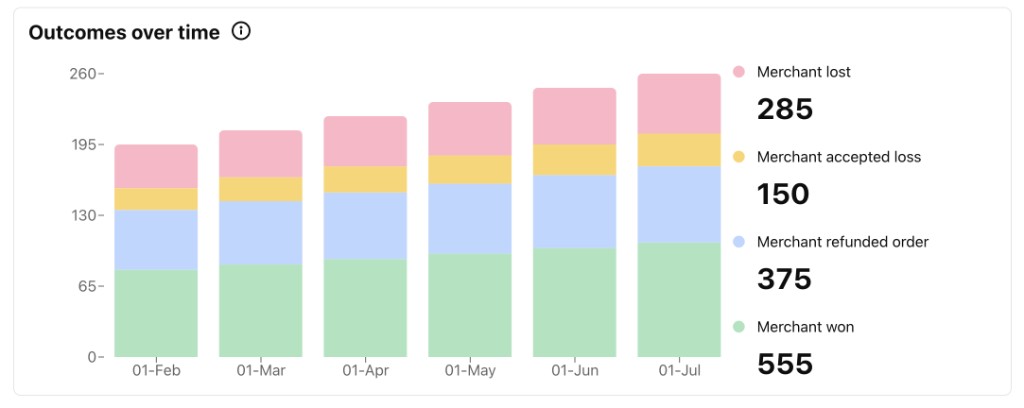
The legacy dashboard's raised-vs-escalated summary chart is replaced with an outcomes over time chart. Since every Disputes Flow 2026 dispute is escalation-only, a raised-vs-escalated comparison would always show ~100% and carry no signal. Instead, this chart trends how your resolved disputes closed each month — won, refunded, accepted loss, or lost — so you can track how your outcomes develop over time.
Shared with the legacy dashboard, scoped to Disputes Flow 2026 data:
- Dispute reasons — breakdown of disputes by reason
- Disputes outcome — distribution of resolved cases by closing reason
- Loss reasons — distribution of lost cases by reason
- Dispute related losses and costs — categories where losses and costs were incurred
- Dispute fee — categories where dispute fees were charged
Shared statistics layout
These sections keep the same layout as the legacy Statistics page, scoped to Disputes Flow 2026 data — see that guide for reference screenshots.
The Email & dispute settings page is shared across Disputes Flow 2020 and Disputes Flow 2026 — there is a single copy, listed once beneath both folders in the navigation. Refer to the legacy Disputes App guide for documentation on this section.
Jump to section...