

Handling disputes in the Merchant Portal — agent guide
A practical guide for store agents and service-centre staff who handle Klarna disputes day to day in the Merchant Portal.
9 min read
This guide is for the people who handle disputes day to day on behalf of a store — support agents, service-centre staff, and operations teams. It explains what you will see in the Merchant Portal's Disputes app and what is expected of you when a dispute comes in. You do not need to know anything about how your store integrates with Klarna to use it.
A dispute is opened when a customer (or Klarna) questions a charge — for example, the customer says the goods never arrived or that they did not authorise the purchase. When that happens, Klarna asks your store for evidence. Your job is to review each dispute and respond before its deadline.
Integration requirement
The deadline is the most important thing on the page. If you do not respond before the deadline, the dispute is automatically closed in the customer's favour and the disputed amount is charged back — even if you would have won. Always work the disputes with the nearest deadlines first.
Open the Disputes section from the left-hand navigation of the Merchant Portal. Inside it you will see a few pages:
| Page | What it is for |
|---|---|
| Open Disputes | Disputes that are active. This is where you spend most of your time. |
| Unauthorized | Disputes where the customer says they did not make the purchase. |
| High Risk Orders | Orders Klarna has flagged as risky — these need fast action (see below). |
| All Disputes | The full history, including closed disputes. Useful for looking things up. |
Multiple disputes folders
You may see more than one Disputes folder (for example Disputes Flow 2020 and Disputes Flow 2026). These are simply folders for older and newer disputes — you do not need to know the difference between them. Handle disputes in every folder the same way: open each one and respond before its deadline. This guide describes the new folder; the older one works in a similar way.
Klarna emails you when disputes need your attention, based on your notification settings in the Merchant Portal. Treat those emails as prompts — but still check Open Disputes and High Risk Orders regularly, since some cases are time-sensitive and you are responsible for meeting every deadline.
- 1.Open the Disputes section. If you have more than one folder, work through each of them.
- 2.In each folder, open Open Disputes and go to the tab where Klarna is waiting on your evidence.
- 3.Sort or filter by Deadline and start with the disputes due soonest.
- 4.Open each dispute, respond (or accept the loss), and move to the next.
- 5.The other tab holds disputes already with Klarna — you do not need to do anything with these.
The tabs only tell you whose turn it is. The labels differ slightly between the two folders:
| Whose turn it is | Tab in the new folder | Tab in the older folder |
|---|---|---|
| Your turn — Klarna needs your evidence | Initiated | Response required |
| Klarna's turn — under review, nothing for you to do | Representment | Under review |
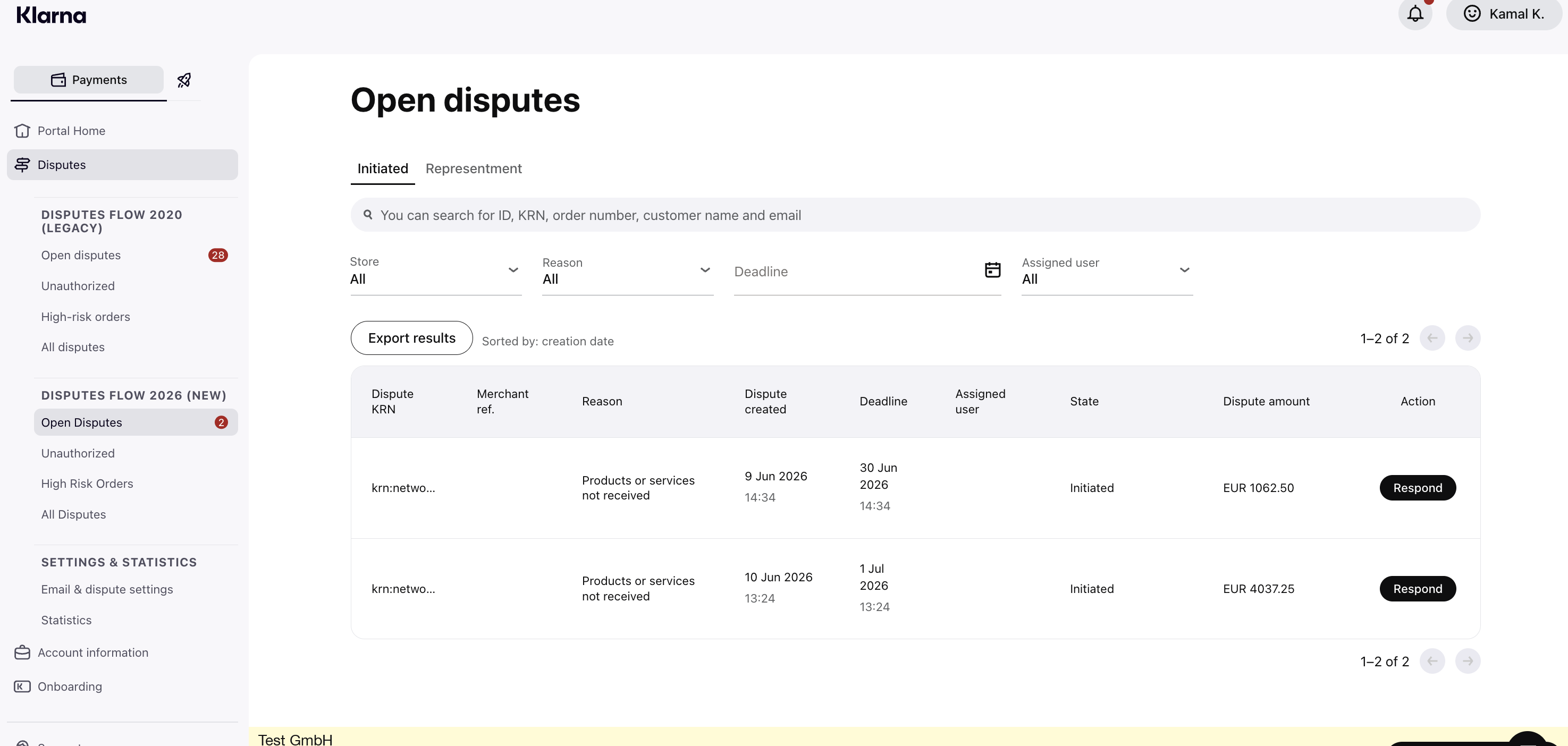
Click any row to open the dispute. The detail view has everything you need in two columns.
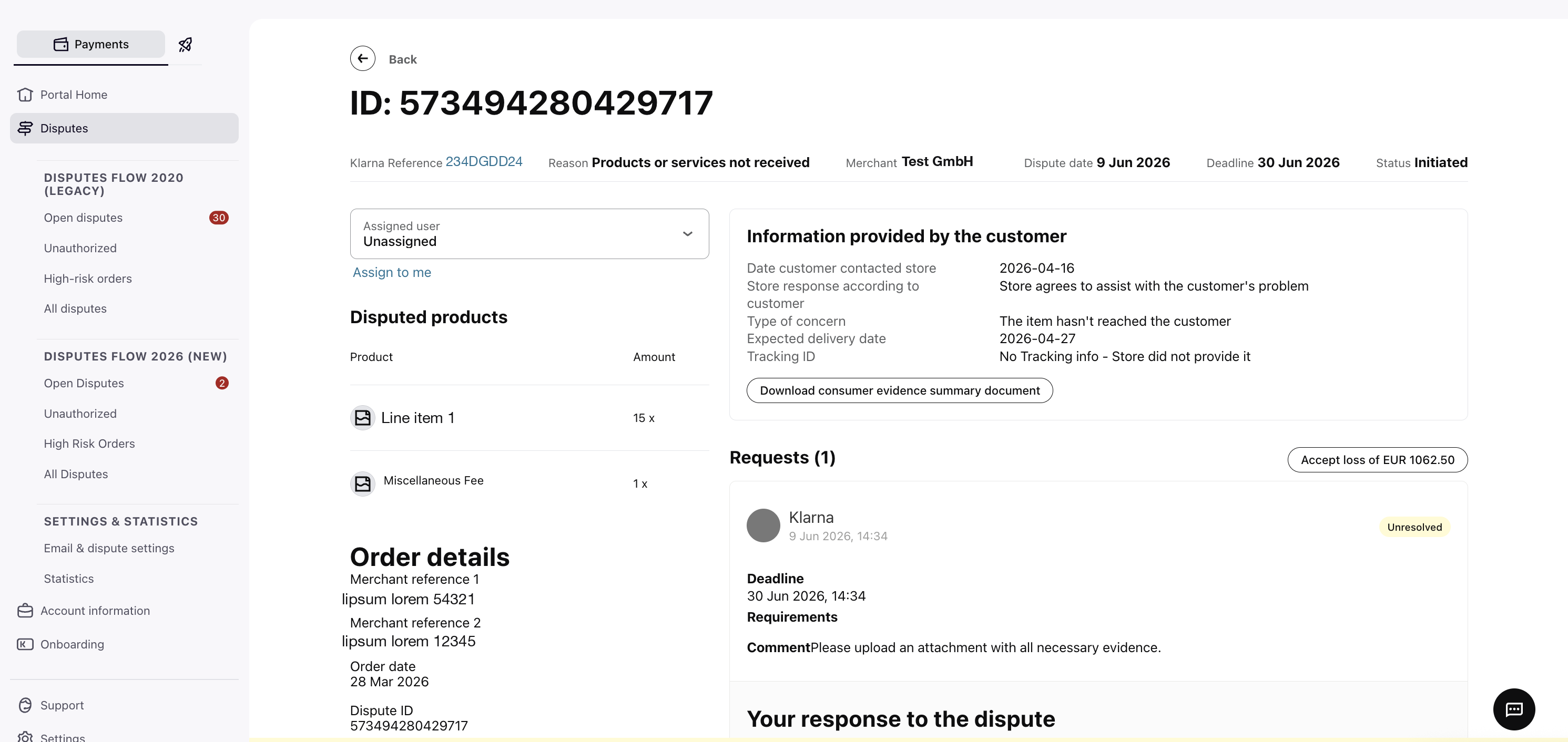
Step 1 — Understand what is being disputed. The header shows the Reason, the Deadline, and the Status. The left side shows the disputed products, the order details, and the customer.
Step 2 — Read what Klarna is asking for. In the Requests area, the Requirements field is a short instruction from Klarna telling you exactly what to provide. Read it carefully — there is no checklist or dropdown, so this text is your guide to what evidence is needed.
Step 3 — Review the customer's side. Under Information provided by the customer, download the consumer evidence summary (a PDF) and read what the customer told Klarna before you reply.
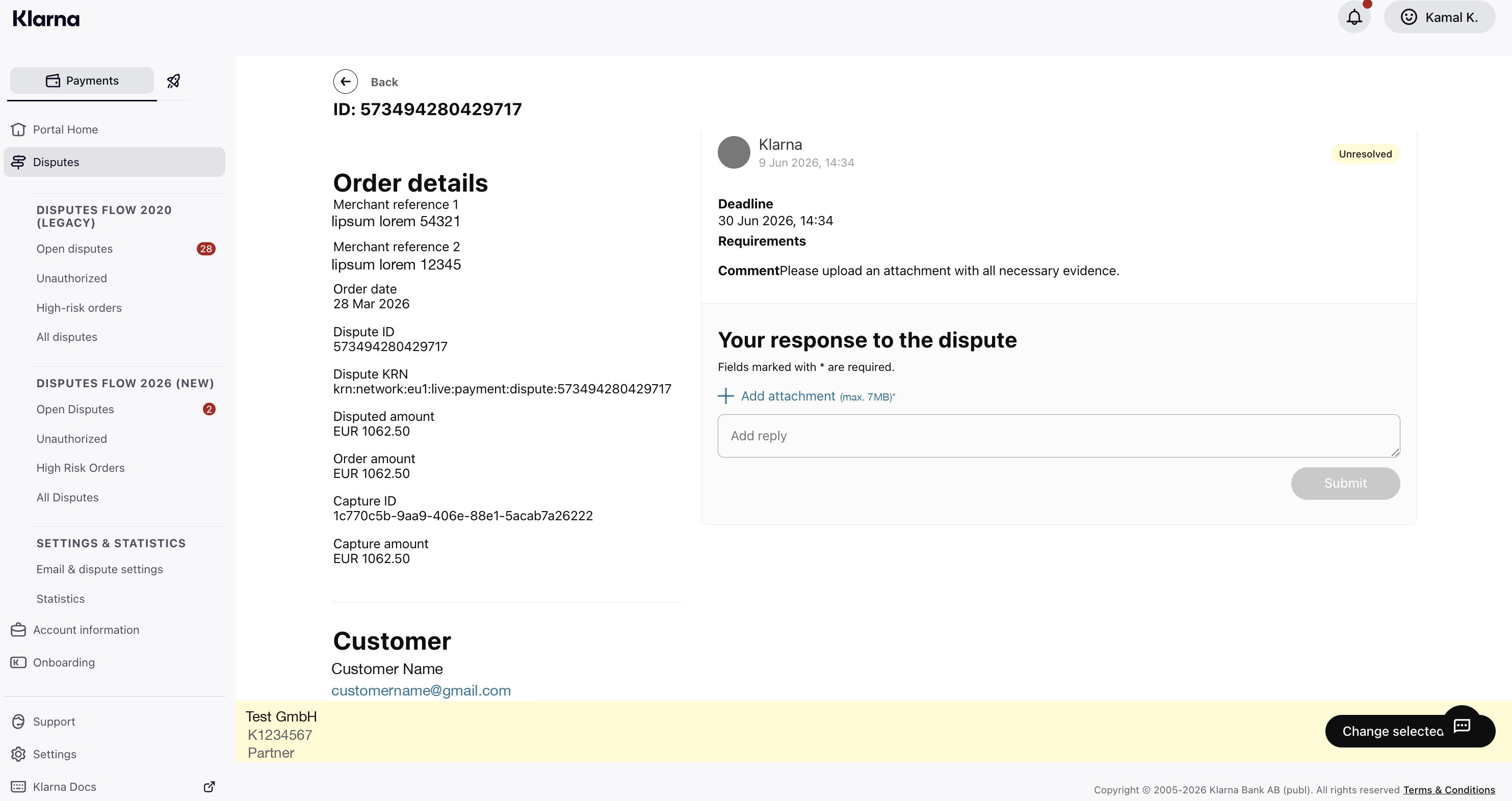
Step 4 — Respond. In Your response to the dispute:
- Add attachment — upload your evidence as one or more PDF files. At least one file is required. Klarna provides a fill-in response template for each dispute reason on the Disputes evidence guidelines page — download the one that matches the dispute, complete it, and upload it.
- Add reply — use the free-text field to explain your evidence and give any extra context.
- Submit — sends your response to Klarna. The dispute then moves to the under review stage (shown as Representment).
Or — accept the loss. If the customer is right, or you have no evidence to contest the dispute, use the Accept loss button (it shows the exact amount). This closes the dispute in the customer's favour without spending more of your time on it.
Complete evidence submission
Make sure your attachments and reply together contain everything Klarna needs. Be clear and specific — a reviewer who has never seen the order should be able to understand your case from what you submit.
Once you submit, the dispute is under review by Klarna (shown as Representment). You do not need to do anything while it is in this state — reviews can take up to 30 days.
In some cases Klarna comes back with a preliminary decision against the store. If that happens, the dispute becomes actionable again — treat it like a new Initiated dispute: open it, read the request, and respond before the deadline.
Integration requirement
If Klarna issues a preliminary decision against you, you have 10 days to appeal (provide more evidence) or accept the outcome. If you do nothing within 10 days, the decision becomes final — this is another respond-or-lose deadline, so do not let it pass.
When a dispute is finally Closed, the Status tells you whether it was won or lost.
Always start with the Requirements field on the dispute — it is specific to that case. For the full picture, Klarna publishes exactly what evidence it needs for each dispute reason, and the most common reasons responses get rejected, in the Disputes evidence guidelines. Base your response on that page. It also gives a downloadable response template for each reason — fill in the template that matches the dispute and upload it as your PDF.
As a quick reminder, the kind of evidence that typically helps:
- Products or services not received — proof of delivery: tracking number, carrier confirmation, signature, or collection details.
- Products defective or not as described — product photos, the item description shown at purchase, and any messages with the customer.
- Refund not processed — proof you already refunded, or an explanation of why a refund is not owed.
- Incorrect amount — the order or invoice showing the amount that was actually agreed.
- Purchase unauthorized — anything linking the order to the customer: delivery to their verified address, account or login details, or prior order history.
The Unauthorized page lists disputes where the customer says they did not make the purchase. Handle these the same way as other disputes — review, then respond with evidence linking the order to the customer, or accept the loss.
The High Risk Orders page lists orders Klarna flagged as risky before a customer dispute is raised. These are very time-sensitive:
- If the order has not shipped yet — cancel it immediately.
- If the order has already shipped — try to stop or recall the delivery (for example, contact your carrier). If it cannot be stopped, give Klarna the shipping information so the case can be reviewed.
Recommended for integration
Check the High Risk Orders page often and act as soon as something appears — you may have less warning time here than with a normal dispute.
- Assign to me — open a dispute and use the Assigned user dropdown (or the Assign to me link) so the team knows who is handling it.
- Search — find a specific dispute by Dispute ID, order number, customer name, customer email, or your own merchant reference.
- Filters — narrow a list by Store, Reason, Deadline, or Assigned user.
- Export results — download any list to a CSV file for reporting or to share with colleagues.
- Fees. Whether and how much a dispute fee costs is a matter between your store and Klarna — it does not change how you handle a dispute. Focus on responding well and on time.
- Technical setup. It does not matter whether your store also connects to Klarna through an API. The steps in this guide are the same either way.
For a fuller reference of every page and field in the Disputes app, see the Disputes app in Merchant Portal guide.
Jump to section...