

Prerequisites
Enable Klarna payment messaging on your online store with Klarna's Mobile SDK and boost transparency and conversion. This includes our pre-qualification feature, which allows customers to check their eligibility for Klarna financing before completing a Payment Request. This reduces friction and increases confidence, as customers know their options upfront.
6 min read
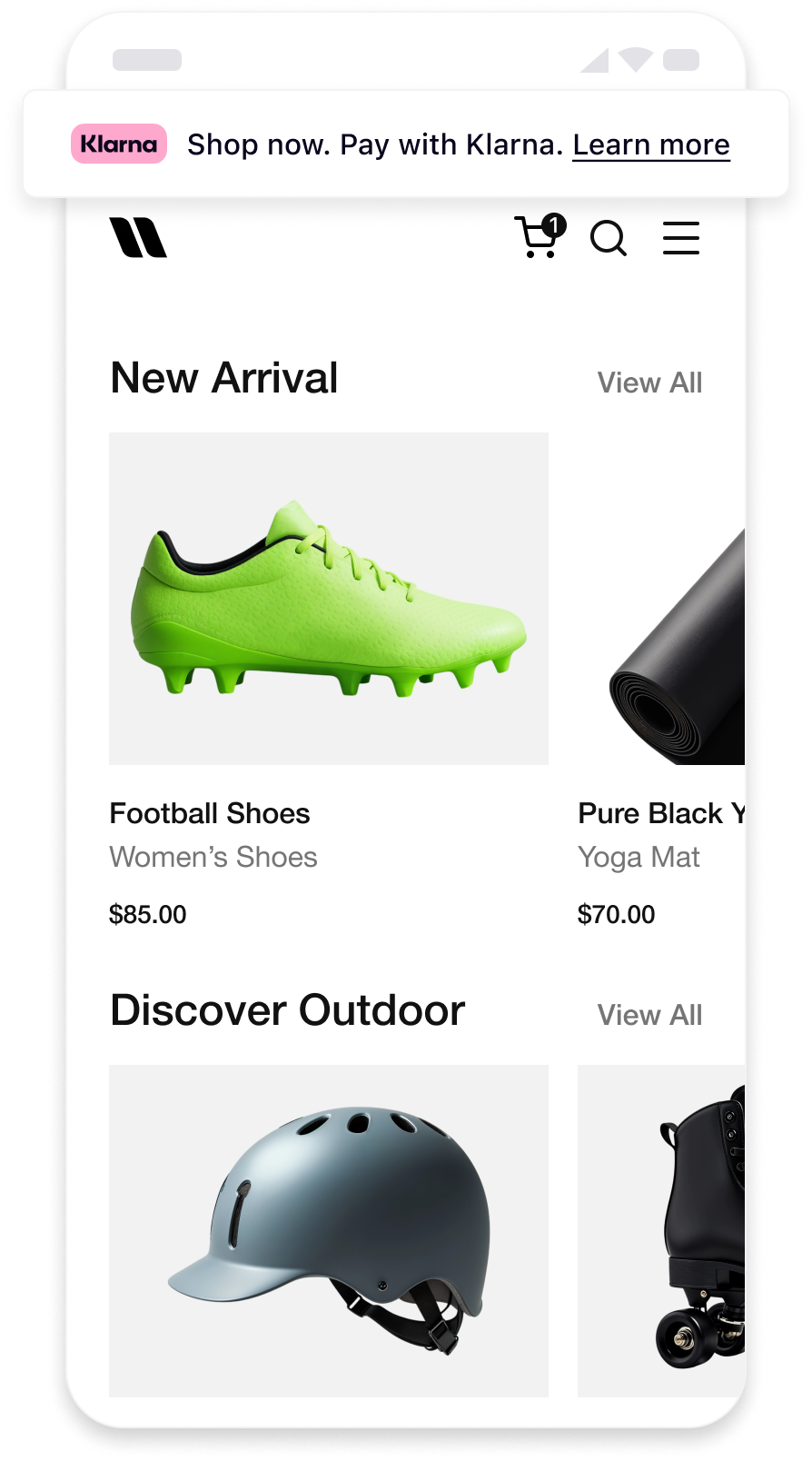 | 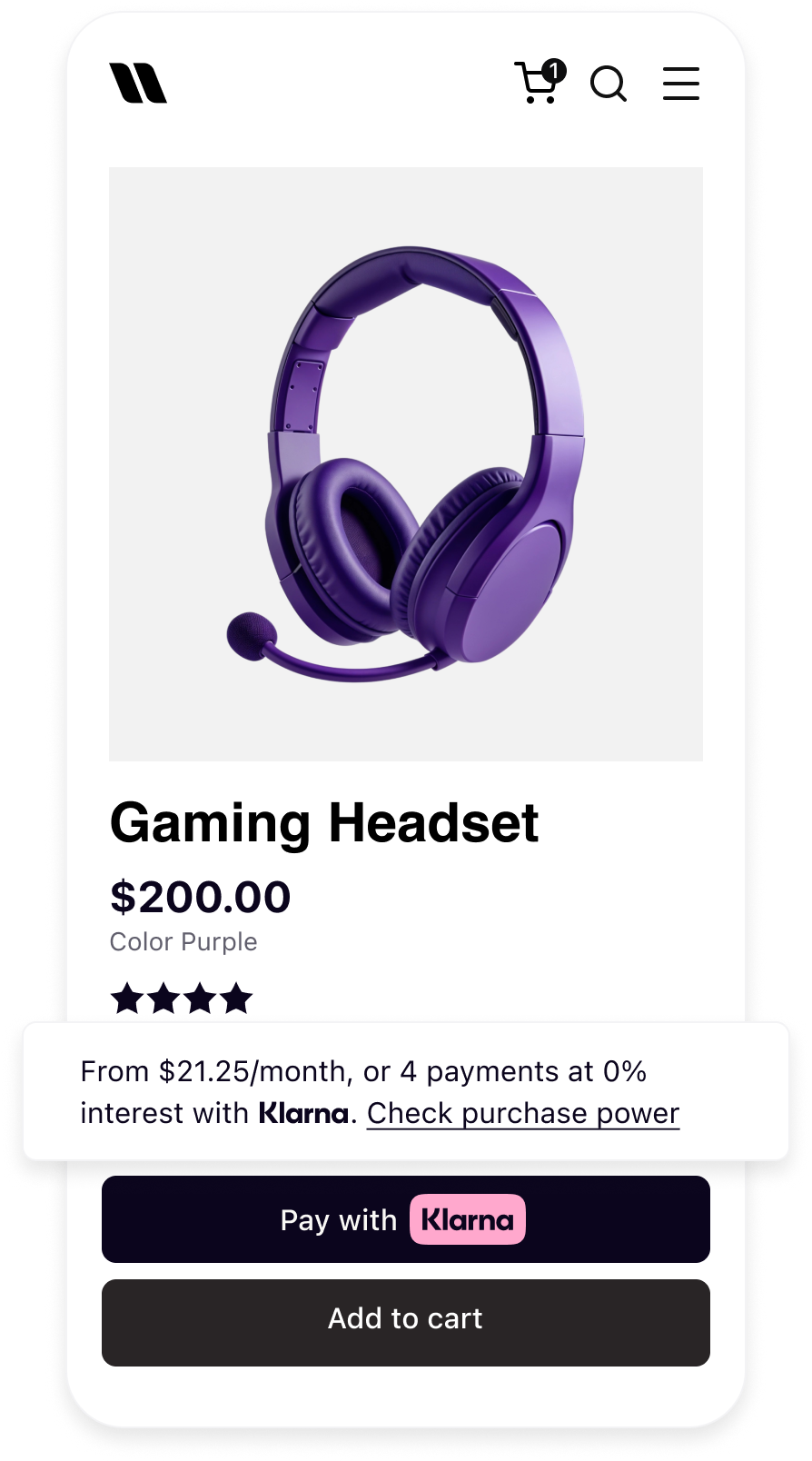 | 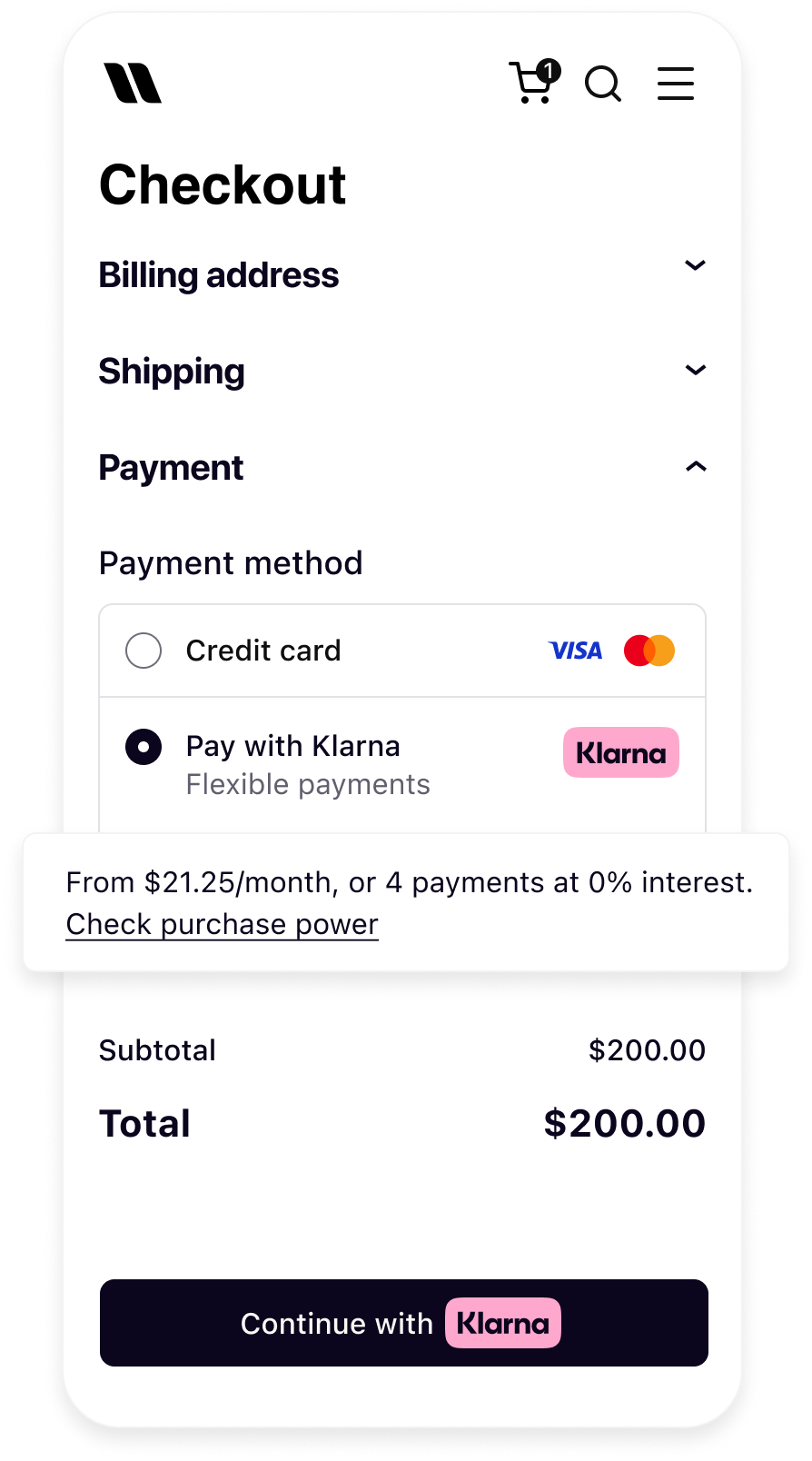 |
| Messaging on the homepage | Messaging on the product detail page | Messaging in the checkout |
Before you integrate On-Site Messaging, please check that you meet the following conditions:
- 1.Ensure that you have Klarna enabled.
- 2.Confirm you have access to the Klarna Partner Portal.
- 3.Inside Klarna Partner Portal:
- 3.1.Confirm that you have generated a client identifier with your domain URL allowlisted.
- 3.2.Confirm that you have generated an API key.
Integration overview
Adding On-Site Messaging to your native app is a straightforward process. At a high level, to achieve this tailored experience for your customers, you will need to follow these steps:
- Request access to On-Site Messaging.
- Add the Mobile SDK Messaging library.
- Initialize the Klarna SDK.
- Create the native messaging view and add it to your screen.
sequenceDiagram
participant C as Customer
participant P as Partner
participant K as Klarna
participant AP as Acquiring Partner
P->>K: Initialize Klarna SDK
P->>K: Create OSM placement
K->>P: Render messaging/prequalification content
P->>C: Display messaging/prequalification content
alt Prequalification flow - Approved
C->>K: Clicks to check purchase power
K->>C: Start prequalification journey
C->>K: Completes prequalification
K->>C: Update placement to show approval
alt Partner builds checkout form
K->>P: Prequalification state preserved
else Checkout form via Acquiring Partner
P->>K: Fetch interoperability token
P->>AP: Share interoperability token
end
end
Add Mobile SDK Messaging Library
Swift Package Manager
In Xcode, navigate to File → Swift Packages → Add Package Dependency and enter the repository URL:
https:/In Version, Select Up to Next Major and take the default option. Then choose the product you need in the Package Product column:
KlarnaNetworkMessaging for UIKit, or KlarnaNetworkMessagingSwiftUI for SwiftUI.Info
KlarnaNetworkMessagingSwiftUI provides the complete SwiftUI interface. Add the SwiftUI product instead of the UIKit product; it includes the underlying messaging module. In code, import KlarnaNetworkCore for the Klarna instance, KlarnaNetworkMessaging for configuration types, and KlarnaNetworkMessagingSwiftUI for the wrapper.CocoaPods
If you're using CocoaPods, you can add the pod you need to your Podfile:
RUBY
1
2
3
4
5
6
# UIKit
pod "KlarnaMobileSDK/KlarnaNetworkMessaging"

# SwiftUI
pod "KlarnaMobileSDK/KlarnaNetworkMessagingSwiftUI"
Followed by performing:
BASH
1
2
pod install
You should then be able to import the
KlarnaNetworkMessaging module (or KlarnaNetworkMessagingSwiftUI for SwiftUI apps) in your workspace.SDK versioning policy
To read more about Mobile SDK versioning policy, check out this section.
Initialize the Klarna SDK
The first step to add On-Site Messaging to your application is to initialize the Klarna SDK and provide the required configuration:
SWIFT
1
2
3
4
5
6
7
8
9
10
// Create an instance of KlarnaConfiguration
let configuration = KlarnaConfiguration(
    accountId: accountId,
    clientId: clientId,
    locale: locale,
    appReturnUrl: appReturnUrl
)
// Initialize Klarna
let klarnaResult = Klarna.initialize(configuration: configuration)
do {Register the scheme in
appReturnUrl as a URL type in your app, then pass incoming app URLs to the SDK from your app or scene delegate:SWIFT
1
2
3
4
5
6
7
func application(
    _ app: UIApplication,
    open url: URL,
    options: [UIApplication.OpenURLOptionsKey: Any] = [:]
) -> Bool {
    Klarna.handleReturnUrl(url: url)
}
Parameters
Relevant for KlarnaConfiguration
| Parameter | Type | Required | Description |
|---|---|---|---|
| clientId | String | Yes | The client ID of the Partner Account that is integrating the Mobile SDK. If the integration is done by a PSP/DP then this must be set to the distribution Partners own client ID. |
| appReturnUrl | String | Yes | Registered app URL used to return customers after an external handover. |
| accountId | String | No | When transacting on-behalf of another account then the Partner Account ID is specified using the accountId property. |
| locale | String | No | Locale identifier for the SDK (for example, en-US). The system default locale is used if not set. |
Create the Native View
The On-Site Messaging native view on iOS is the
KlarnaMessagingPlacementView. You can create it programmatically and add it to your view controller or custom views. For SwiftUI apps, use the KlarnaMessagingPlacement wrapper from the KlarnaNetworkMessagingSwiftUI module instead.SWIFT
1
2
3
4
5
6
7
8
9
10
import KlarnaNetworkMessaging

// Create an instance of KlarnaMessagingPlacementConfiguration
// Depending on your requirements, you can create `CreditPromotionBadge` or
// `CreditPromotionAutoSize` configuration
let placementConfiguration = KlarnaMessagingPlacementConfiguration.creditPromotionBadge(
    theme: .automatic,
    amount: 10000,
    currency: "USD"
)Parameters
CreditPromotionBadge
| Parameter | Type | Description |
|---|---|---|
| theme | KlarnaTheme | (Optional) Enumerated theme value to specify how to stylize the view on light, dark or automatic (system) configurations. Default value is light |
| amount | Int | Amount for the placement in minor units (USD 120.00 = 12000), used for amount-based credit promotions. |
| currency | String | 3-letter ISO 4217 currency code |
CreditPromotionAutoSize
| Parameter | Type | Description |
|---|---|---|
| theme | KlarnaTheme | (Optional) Enumerated theme value to specify how to stylize the view on light, dark or automatic (system) configurations. Default value is light. |
| amount | Int | Amount for the placement in minor units (USD 120.00 = 12000), used for amount-based credit promotions. |
| currency | String | 3-letter ISO 4217 currency code |
KlarnaTheme
| Name | Descriptions |
|---|---|
| light | Light style for placement view. |
| dark | Dark style for placement view. |
| automatic | Automatic theme that will use the system's user interface style. |
Jump to section...